Daily Menu for Hotels: Print, Screen and Web From One Sheet

Picture the breakfast supervisor at a hotel at 06:40. Three dishes changed overnight and one price went up. Now comes the retyping: the A4 card for the terrace, the slide for the lobby TV, the PDF on the website. By the time the third is done, the first is already out of date.
A daily menu for hotels doesn't need three documents. It needs one list the kitchen edits, and designs that read from it. (If you only need one good-looking menu, how to design a restaurant menu with AI is the shorter route.)
Why hotel daily menus go wrong
Every place a menu appears is a copy: the terrace card, the lobby screen, the website, the page behind the table QR code. Copies drift. The soup is pumpkin on the card and tomato on the TV, and a price differs by a euro. Nobody did anything wrong. They were typing at 06:40.
My view: stop editing designs every day. Make the design once, with the layout, the fonts, the colours and the little green V. Let the content come from a spreadsheet.
How a live menu works
There are three pieces.
- A list. A Google Sheet, an Excel or CSV file, or a table you paste. One row per dish.
- One dish row that repeats. You make one dish look right: name, description, price. Ridvay repeats it once for every row of the list and stacks the rows.
- Outputs. The same design exports as a print-ready PDF, opens full screen on a TV, or embeds as a live image that follows the list within a few minutes.
Three of the eight rows behind the dinner menu below:
| Course | Dish | Description | Price | Veg |
|---|---|---|---|---|
| Starter | Heirloom tomato salad | Whipped feta · basil oil · grilled sourdough | €11 | yes |
| Main | Grilled sea bass | Fennel purée · saffron potatoes · lemon butter | €26 | |
| Dessert | Lemon posset | Shortbread · raspberries | €9 | yes |
Example 1: the terrace dinner menu, for print
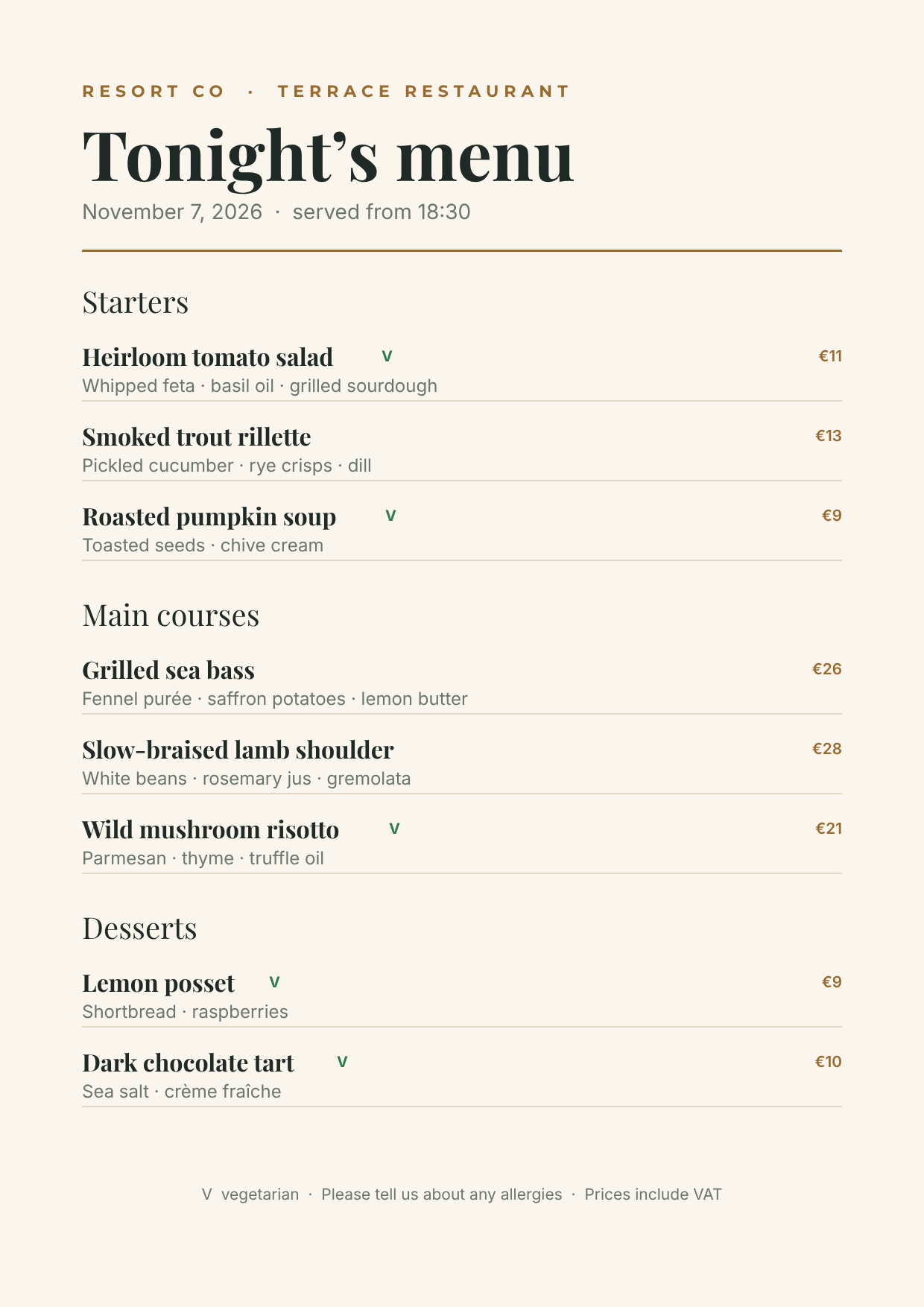
Eight rows of a table, one design. Three lists keep the rows where Course is Starter, Main or Dessert, so every dish lands under its heading. The green V shows only where the Veg cell isn't empty. The date line is {{time.now}}, which prints the date when the card is rendered, for example “November 7, 2026”. It is the UTC day, written in English, so near midnight it can differ from the hotel's clock.
For print, the design's print setup is A4 with 3 mm bleed and crop marks. You set it in Share → Print-ready PDF…, and it is saved with the design once you change a field there. In the same panel you create one private link for the print shop. Each time the printer opens it, it builds a PDF from that setup with the current rows, so there is no file to re-send when the chef swaps the soup at 07:00. A change in a connected sheet can take a minute or so to show, so the printer should reopen the link rather than keep an old download. The print shop link guide covers replacing or turning it off.
Example 2: the lobby breakfast screen, for a TV
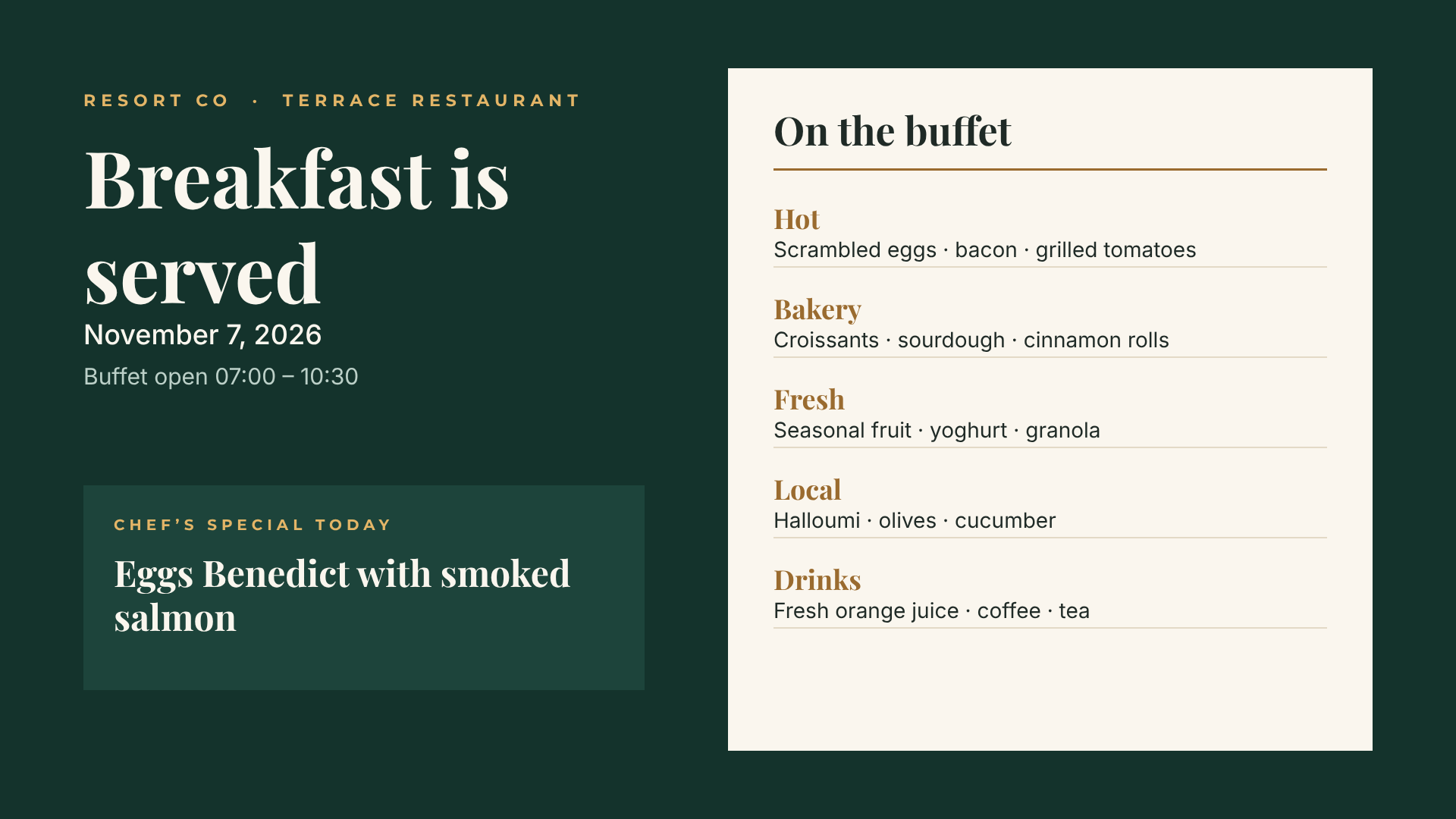
Same idea, 16:9. The buffet stations come from a table. The chef's special is a variable, a value you can change from the image address, the API or a script without opening the editor. You can try it on the image address: add ?special= and a dish, and you get a different picture from the same design.
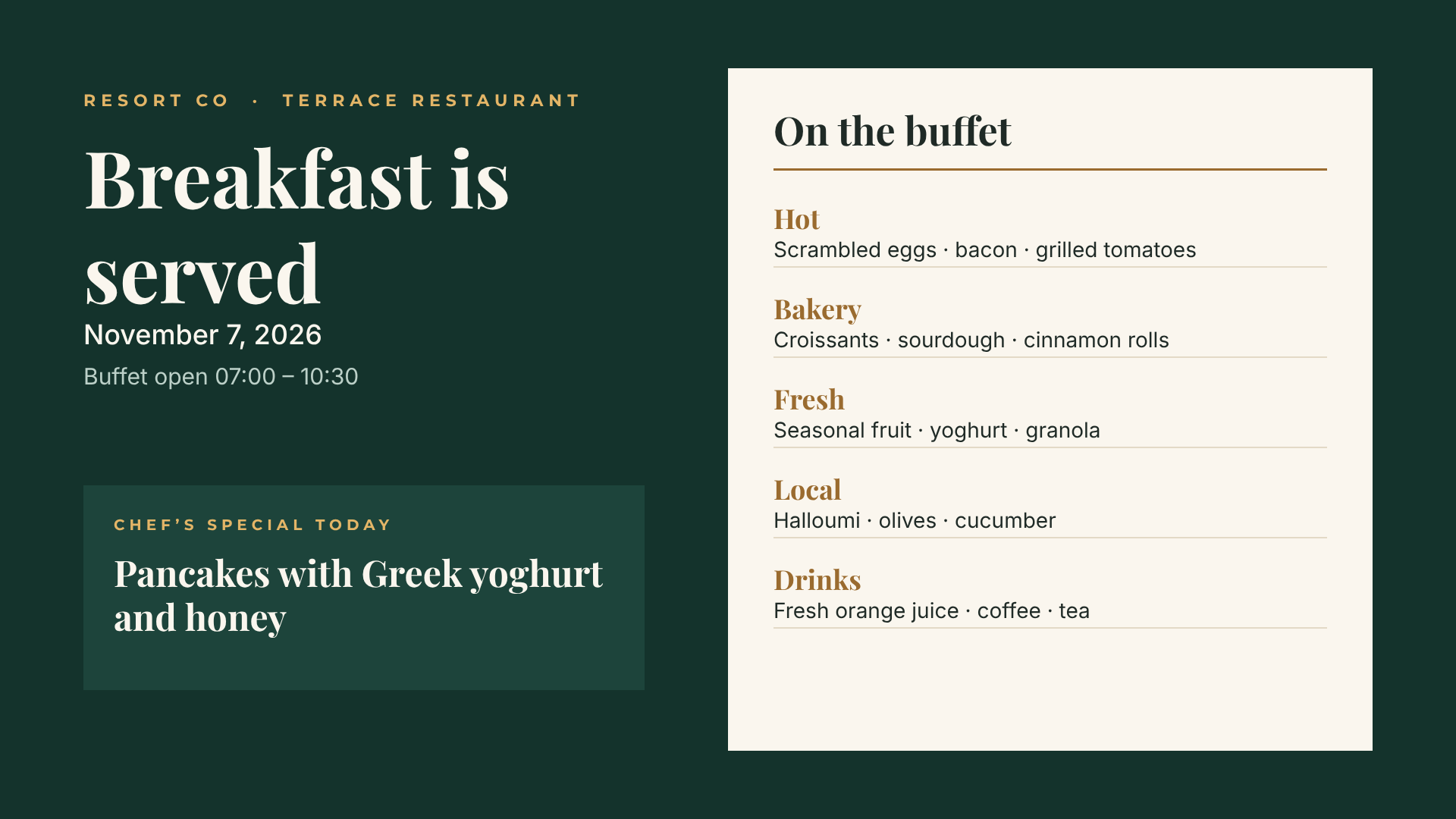
On the TV you open the screen link in the browser. Try the link in your TV's browser, a streaming stick or a tablet on a stand before you rely on it. The screen asks for a fresh picture every 5 minutes by default. Add ?refresh=60 to the end of the link to ask every minute, the shortest it accepts. These two demos keep their table inside the design. Connect a Google Sheet instead and the screen follows your edits with a delay of a few minutes: the sheet is read at most once a minute, and the screen only asks on its timer.
Building one in Ridvay Studio
Start with the look. Type this into Studio:
An elegant A4 dinner menu for a hotel terrace restaurant: “Tonight’s menu” with today’s date, three courses (starters, main courses, desserts), each dish with a name, a one-line description and a price in euros, a small green V on vegetarian dishes, cream background, serif headings.
You get an editable design: real text and layers, not a flat picture. If the date comes out as plain text, type {{time.now}} in its place. Then make it live:
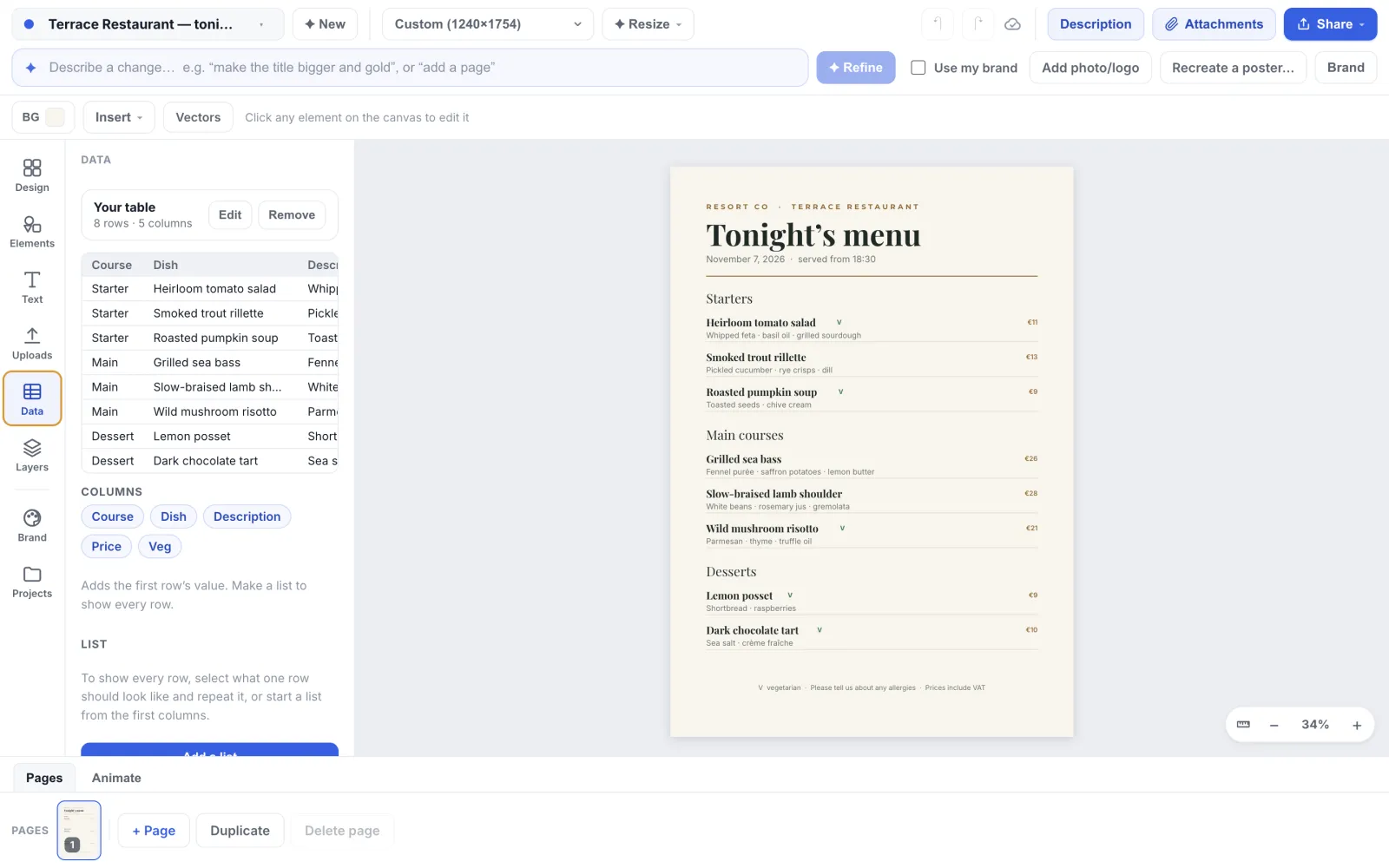
- Connect the list. Sign in first, because a linked sheet and a repeated list both need an account. Click Data in the left rail, then paste a Google Sheets link (shared as "Anyone with the link"), upload a CSV or Excel file, or paste cells copied from Excel.
- Repeat the dish. Under each course heading, delete the sample dishes until one is left. In that dish, type
{{row.Dish}},{{row.Description}}and{{row.Price}}over the sample name, description and price. Select the elements that make up that dish, including the green V so it is part of the row, and choose Repeat in the List section. Do this for each course. - Split by course. Each course is its own list. Select a dish in the first list and, in the List section, set "Only rows where" to row.Course, is, Starter. Do the same with Main in the second list and Dessert in the third.
- Show marks only where they apply. Select the green V and set "Show when" to row.Veg, leaving the next box on "has a value".
- Put it on a screen. Share → Show on a screen… gives you the link and a QR code for the TV. It shares the design, so anyone with the link can read the sheet address or pasted table stored in it. Keep private details out of the sheet.
Open Studio with this prompt and you have the design ready to connect. The click-by-click version, with screenshots, is the daily menu guide.
What to put in the sheet
- Write prices as text, with the currency. €26 in the cell prints as €26. The sheet decides how a price looks.
- One tab per menu. Dinner, breakfast, bar, each with its own design. To switch a design to another tab, click Change in the Data tab and paste that tab's address.
- Leave room for a longer day. A page has a fixed size, so give each list a little more height than today's dish count needs.
- Treat allergens as data. Ridvay doesn't check allergen information, and the kitchen stays responsible for it. An allergen column means the card, the screen and the website show the same line.
When several people touch the menu
If the chef, the marketing lead and the general manager all have a say, Ridvay teams (in early access) can require approval before a design is downloaded, published or sent to the print shop, and show who else is in a design while you edit. One thing to plan for: when your team has approvals on and a design has an approved version, the screen, the live image and the print link keep showing that version, with the rows and date it had when it was approved or an approver last edited it, until it is approved again. The approvals guide explains the flow.
Quick answers
Can I use Excel instead of Google Sheets? Yes. Upload the file in the Data tab (you need to be signed in, and only the first sheet of a workbook is read) or paste the cells. An uploaded or pasted table is stored in the design, so you change it with Edit in the Data tab. A Google Sheet is the one that follows your edits by itself, so use it for the daily list.
Do I need an app on the TV? No, only a web browser. The screen link is a plain web page.
Can guests scan a code for the online version? Put a QR code on the table card that links to your menu page. The post on putting a QR code on a flyer covers size and contrast, and the QR guide covers the settings.
Make the breakfast screen next
Once the dinner card works, the lobby screen follows the same idea. Open Studio with the breakfast screen prompt, connect the table, and put the screen link on the lobby TV.