
Require approval before a design is downloaded, published or printed
Updated 2026-11-07
A wrong price on a printed menu costs more than the time it takes to check it. Design approvals add one step: the person who made the design asks a colleague to review it. When approval is required, the design cannot be downloaded, published with a share link or on a screen, or sent to the print shop until that colleague approves.
The reviewer approves or asks for changes and can leave notes. What they approved is kept as a snapshot. When approval is required, a later edit stays locked until it is approved again. Teams is in early access: if you don’t see “Create a team” on your Projects page yet, contact us and we’ll switch it on for your account.
How to do it
Turn approvals on
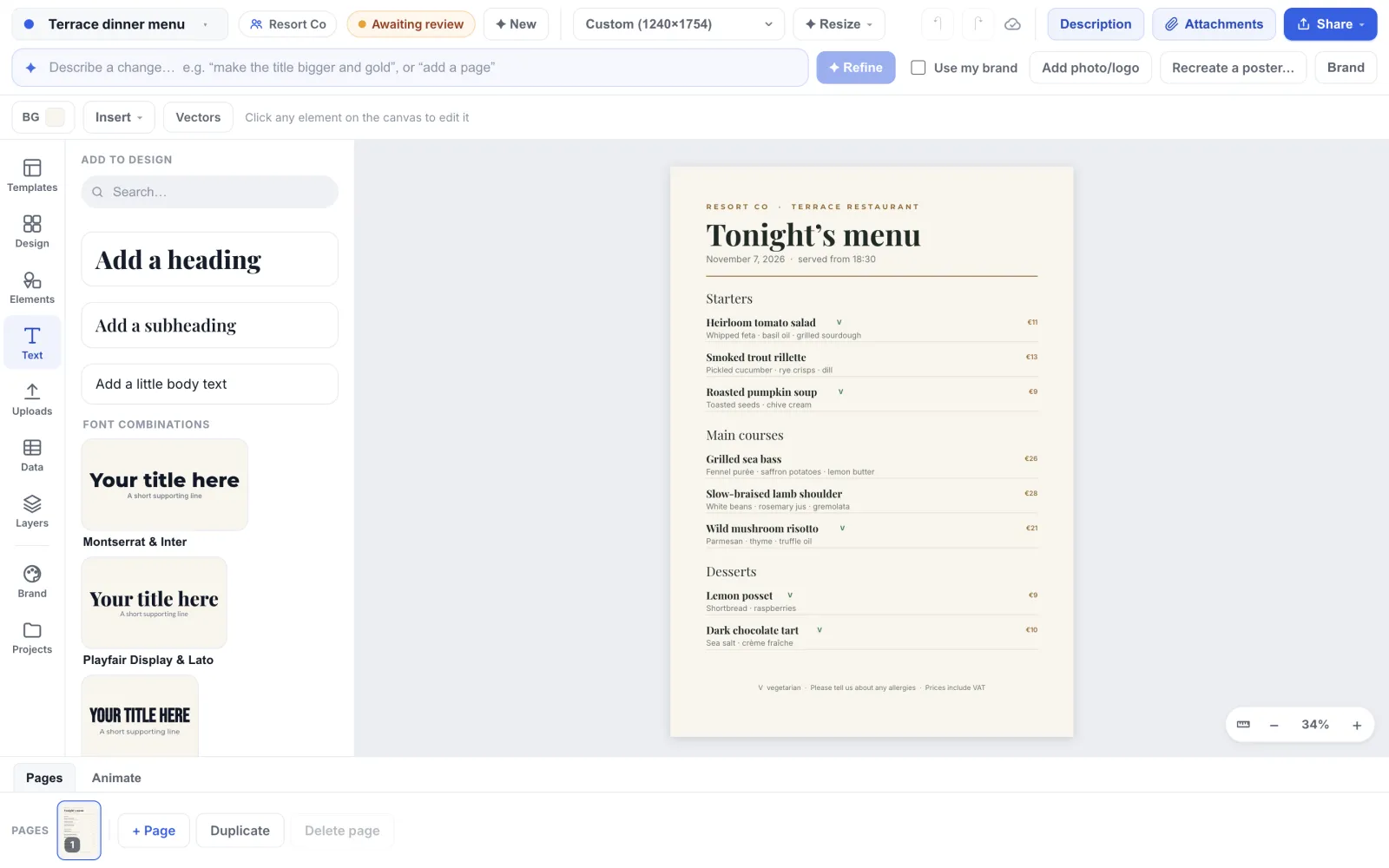
An Account manager or the Owner opens People, then Team settings, and switches on “Design approvals”. Choose who can submit (“Everyone” or “Members only”), who can review (“Everyone”, “Admins and brand designers only” or “Selected people”, who get the Approver role), which designs need it (“All designs” or “Designs created from brand templates only”), and “Is approval required to publish?”. It is “No” by default; choose “Yes” to lock downloads, publishing and print files until a design is approved. Click “Save changes”.
See what is locked
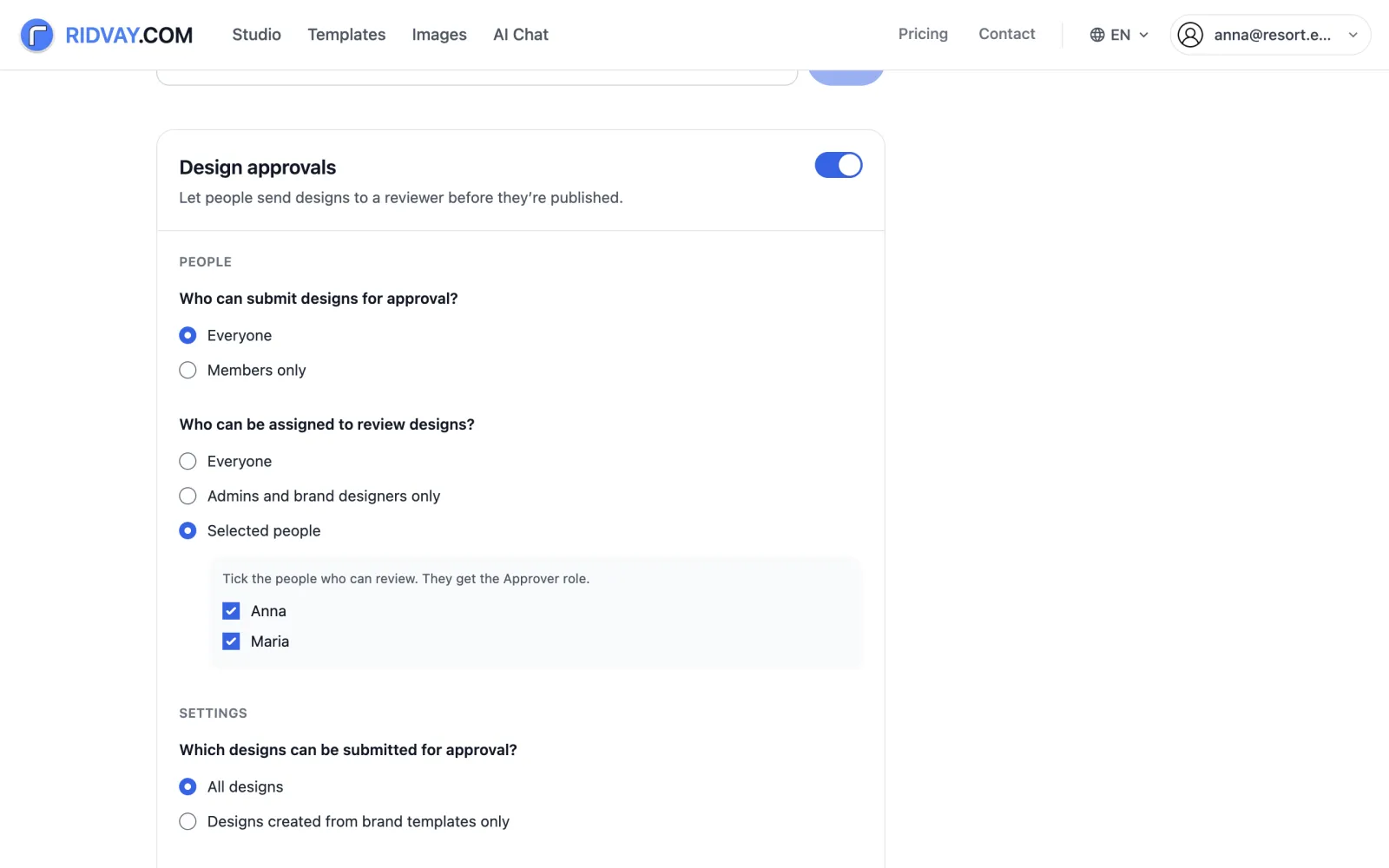
When approval is required, the Share menu of a design that needs approval and has not been approved shows “Needs approval before download”. Every other item is greyed out until the design is approved: the exports, the video items, “Print-ready PDF…”, “Share editable link” and “Show on a screen…”. The print-shop link is locked too. “Request approval” is the first item in the menu.
Request approval
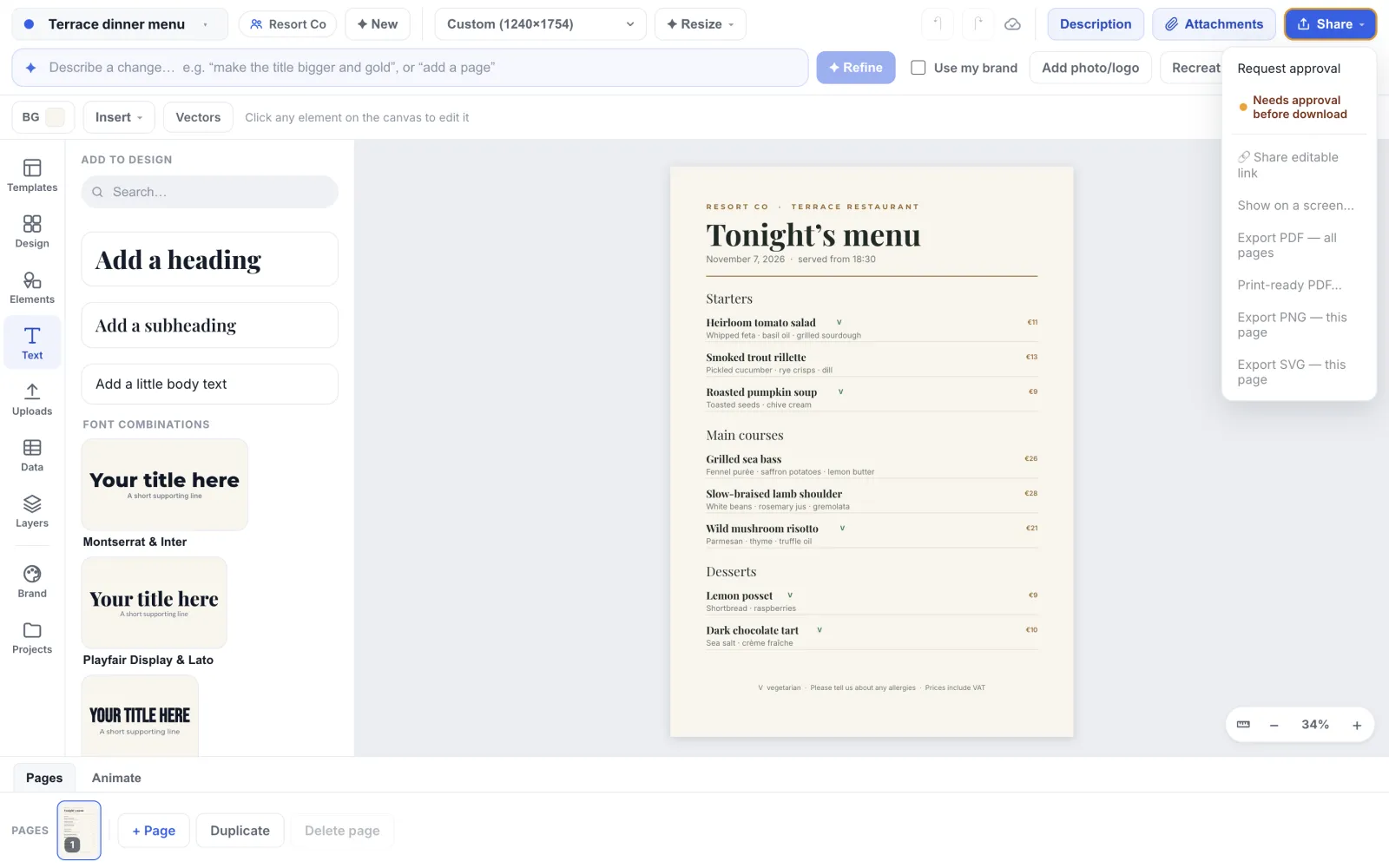
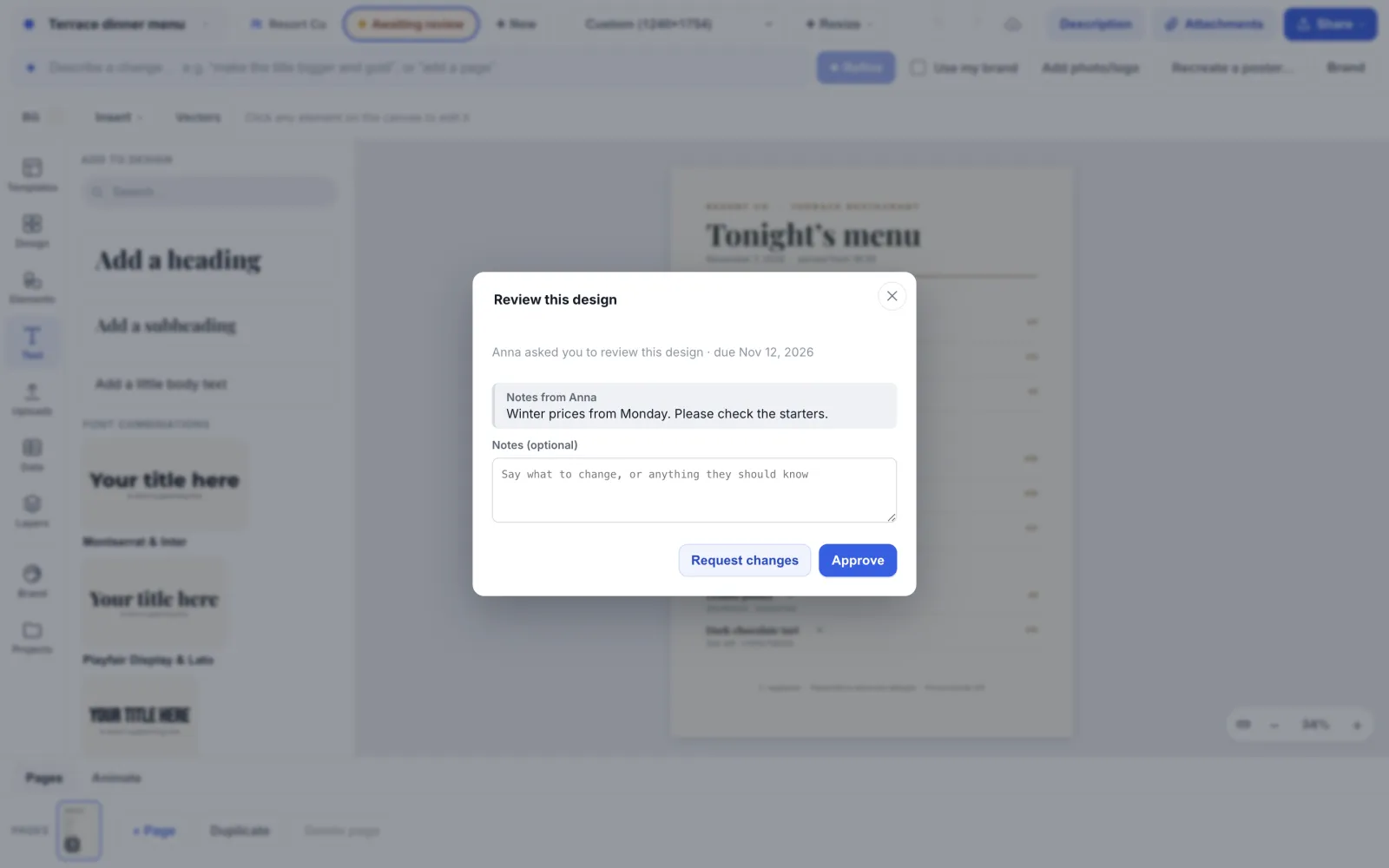
Choose Share, then “Request approval”. Pick the reviewer, add a due date and notes if you like (“Winter prices from Monday. Please check the starters.”), and click “Request approval”. Your reviewer gets an email. The Share menu offers this only if you have edit or text-and-photos access to the project (and, when the team chose “Members only”, are not just a Viewer). The reviewer list shows only people the team’s reviewer setting allows and who can open the project; you cannot pick yourself.
Wait, or withdraw
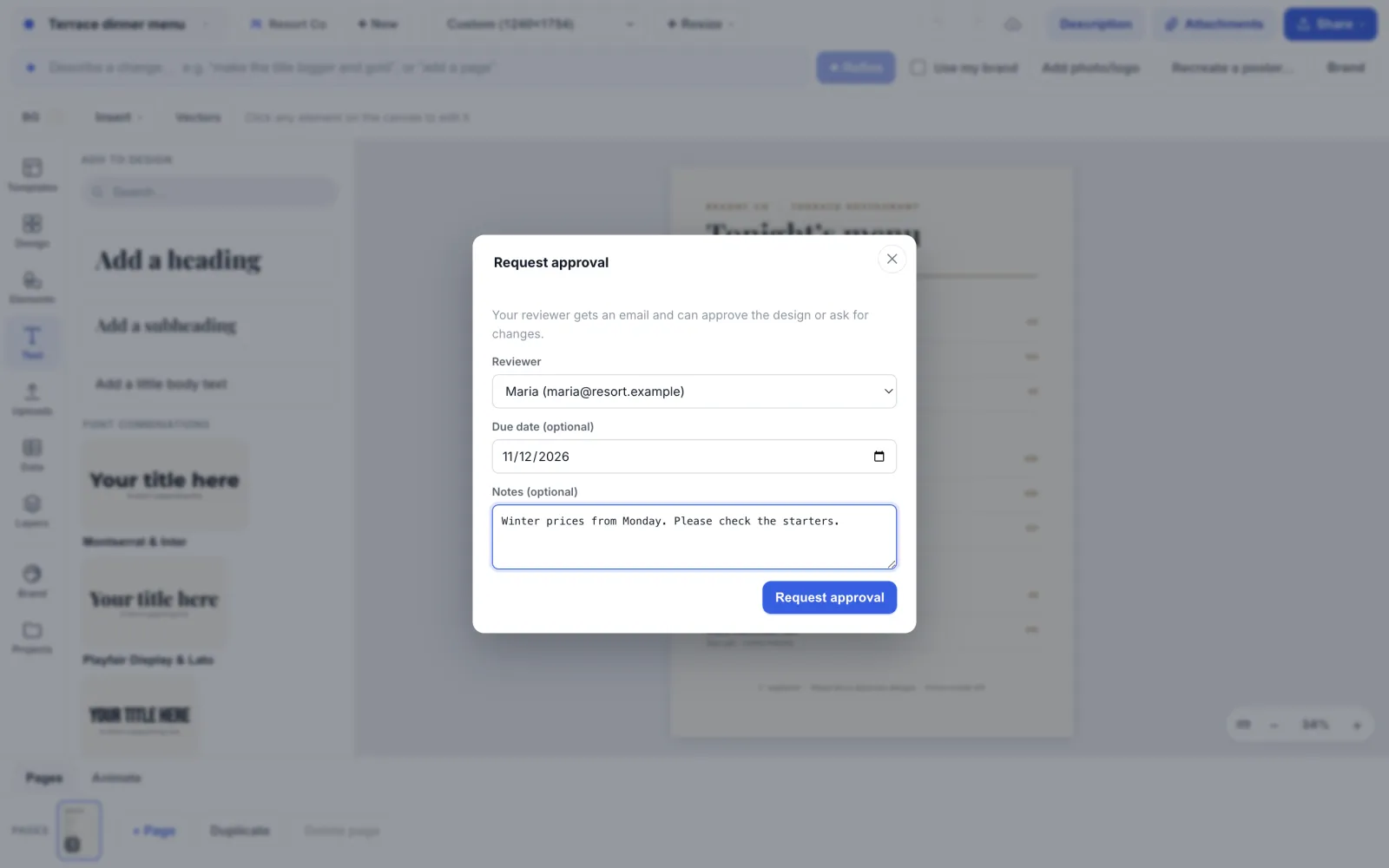
The pill in the top bar reads “Awaiting review”. Click it, or choose Share, then “Awaiting review”, to see who has it and when it is due. Only the person who sent it, or someone who can manage the project, sees “Withdraw submission”. It takes the request back, for example when you spot a typo yourself. Anyone with access to the project can see the same status on the project’s design list.
Review the design
The reviewer opens the design from the email or from the Approvals tab’s “Designs to review” list, clicks the pill and reads the requester’s notes. “Approve” marks it approved and saves that version as it looks at that moment, live values included. “Request changes” sends it back, and a note saying what to change is worth adding (it is optional). Reviewers can use “Change decision” later if they were too quick.
Edit after approval
If anyone except the reviewer edits the design after it was approved, its status changes to “Needs approval again”. When approval is required, downloads and video exports lock again, while the print-shop link and the public share page keep showing the last approved version until the new one is approved. An edit by the assigned reviewer, or by whoever made the decision, keeps the approval.
Tips
- Use “Designs created from brand templates only” to make approval apply to the printed menus and posters, and let people experiment freely in their own drafts.
- Put the exact thing to check in the notes: “prices on the main courses”, “new allergy line”. A reviewer who knows what changed approves faster.
- The Approvals tab on the Projects page lists “Your submissions” and “Designs to review”, with a filter by status, so a reviewer has one place to work from.
- Choose “Selected people” as reviewers if only the general manager should be asked to review. They get the Approver role when ticked.
Frequently asked questions
- Can I approve my own design?
- Not by choosing yourself. When you ask for approval you cannot pick yourself as the reviewer, so the assigned reviewer has to decide. The one exception is the team Owner, who can decide any request, including one they sent.
- Does approval work for personal designs?
- No. Approvals apply only to designs in a team project, because they need a second person who is allowed to open the design.
- What does the reviewer see?
- The design itself, who asked, the due date and the notes. They can open it in the editor to look closer, but they do not need to edit anything to decide.
- What if a design needs approval and I only want a PNG for a quick chat?
- With approval set to required, exports wait until the design is approved. Turn “Is approval required to publish?” to No if you want approvals as a request and a status without the lock.
- Can the approved version change by itself?
- No. The approved version is a snapshot. A design that is linked to live data keeps the values it showed when it was approved, and so do its layout and wording. The print-shop link keeps showing that version, and so does the share page when approval is required. To show newer values, ask the reviewer to approve again with “Change decision”. After an edit, request approval again. The one exception is an edit by the reviewer (or whoever made the decision): that keeps the approval and refreshes the saved version to include their change.
Try it on your own design
Teams is in early access. Contact us to have it switched on for your account.
Related guides
- Teams and projectsSet up a team: invite people, give them roles and share projects
- Brand templatesBrand templates: let the team start from a design you control
- Export and shareExport PNG, SVG, PDF, PowerPoint, GIF and video, or share an editable link
- Print-ready PDFExport a print-ready PDF with bleed, crop marks and a safe zone