
Add a QR code that scans: a menu link, a page, a Wi-Fi login or any text
Updated 2026-11-07
A QR code on a table card sends a guest to the wine list, the booking page or the Wi-Fi login. A QR that does not scan is worse than none, so Studio draws every code itself as a real, scannable code from the exact text you give it, never as a picture an AI painted.
You can insert one yourself, ask for one when you generate a design, or edit one that is already there. The same panel changes the link and the colour and shows a live preview.
How to do it
Insert a QR code
Open Insert in the toolbar and choose “Vector”. In the “Add a vector” window, choose the “QR code” tab. The box starts with “https://”. Add your address after it, or delete it and type any text, such as a Wi-Fi login. A preview of the code appears as you type. Click “Insert QR code”. The code lands on the page, ready to move and resize.
Or ask for it in your description
When you generate a design, write the link: “a table card with a QR code to resort.example/wine”. Studio draws a code for that link. If you ask for a QR code and give no link, you usually get an empty QR box instead, unless the design’s own text contains exactly one web address, which Studio then uses.
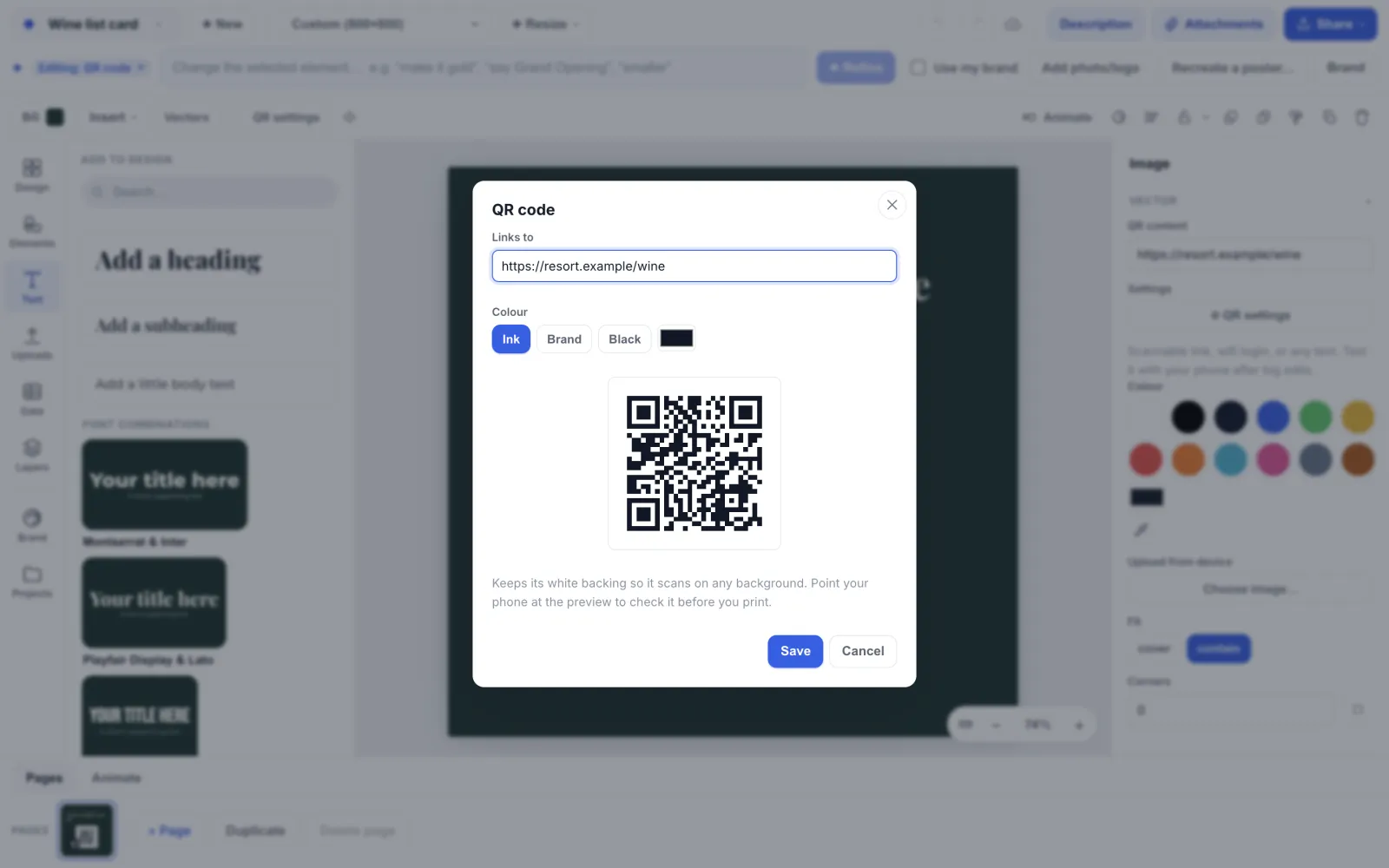
Fill an empty QR box
The box reads “QR code” with “tap to add the link”. Click it and the QR settings open. Type the link and click “Save”. The box becomes a working code, and the captions and layout around it stay where they were.
Edit a code that is there
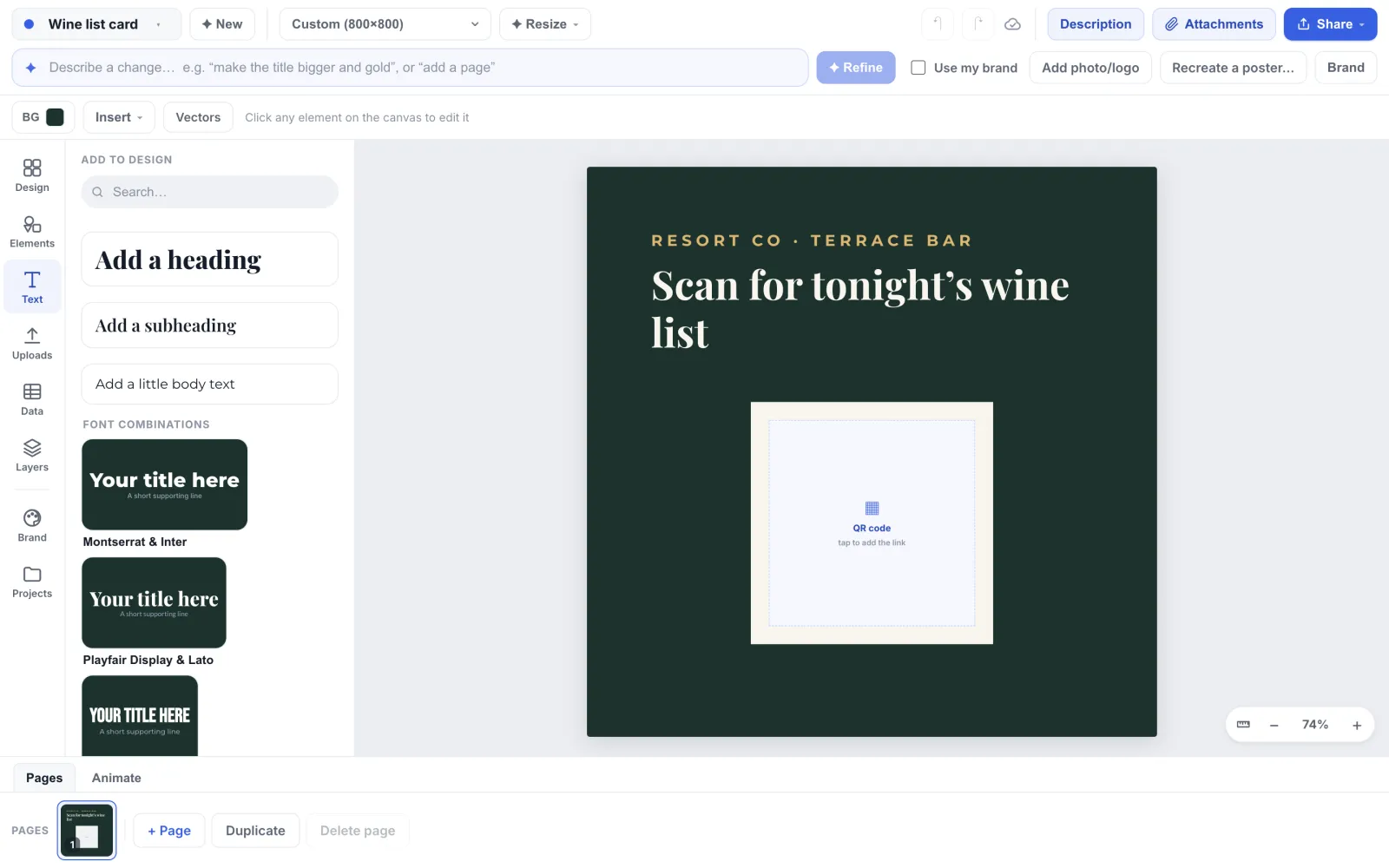
Double-click the QR code, or select it and use “QR settings”. Change “Links to” to point somewhere else, then click “Save”; “Cancel” throws the change away. The preview redraws as you type, with the line “Type a link to see the code.” when it is empty.
Choose its colour
Under “Colour”, pick “Ink”, “Brand” or “Black”, or use the colour swatch next to them for any other colour, then click “Save” to keep it. “Brand” is a fixed blue, not a colour from your brand kit. The code keeps its white backing so it scans on any background, light or dark.
Scan it before you print
Point your phone at the preview before you click Save, and again at the exported file. A scan test takes five seconds and is worth doing on every printed card.
Tips
- Link to a page that works on a phone. A QR code on a menu that opens a 40-page PDF is rarely read.
- Leave a quiet space around the code and do not print it too small.
- Short links make simpler, easier to scan codes. Use a short path on your own site.
- A QR code for a Wi-Fi network is text in the standard form WIFI:T:WPA;S:name;P:password;; and your phone offers to join.
Frequently asked questions
- Does the QR code expire or cost anything?
- The code holds the text you typed itself. It is not a Ridvay link that redirects, so there is no scan fee and the code itself never expires. It opens whatever page your link points to, so keep that page online.
- Why does my design have an empty QR box?
- Studio left a box for you to fill because it had no link it could use. That happens when you asked for a QR code and gave no link. It also happens in a design made from an uploaded file when the only link was inside the file, because Studio uses only a link you typed yourself. Click the box and add the link. In a team project where you only have “Can edit text and photos”, you cannot fill or edit a QR code, so ask someone who has “Can edit”.
- Why did Studio not put the link from my document in the QR code?
- In a design made from an uploaded Word, PDF or Excel file, a QR code is made only from a link you typed yourself, so a stray address in the file can never end up behind a code.
- Can I put a barcode on a design?
- Yes. Open Insert, choose “Vector”, and use the “Barcode” tab to make product barcodes.
- Does the colour change whether it scans?
- Dark codes on the white backing scan best. Pick a colour with strong contrast to white, and avoid pale yellows.
Try it on your own design
Free to start, nothing to install.
Related guides
- From Word, PDF or ExcelTurn a Word, PDF or Excel file into a designed menu, price list or flyer
- Elements and textAdd shapes, lines, frames, icons, photos and text styles
- Print-ready PDFExport a print-ready PDF with bleed, crop marks and a safe zone
- Daily menu from a sheetMake a daily menu that follows a spreadsheet: print it, show it on a screen, share it