
Send your print shop one link that always opens the latest PDF
Updated 2026-11-07
Emailing a PDF to the print shop means the wrong version is always one email behind. A print link is one web address that stays the same while you edit the design. Each time the printer opens it, they get the newest saved version as a PDF, with the live data of a menu or price list as it was within about the last minute. In a team with approvals on, once a version is approved the link serves that approved version instead, with its data as it was when approved.
The link is private. It is not the share link, the design does not have to be shared, and only people who have the link can open it. You can replace it or turn it off at any time.
How to do it
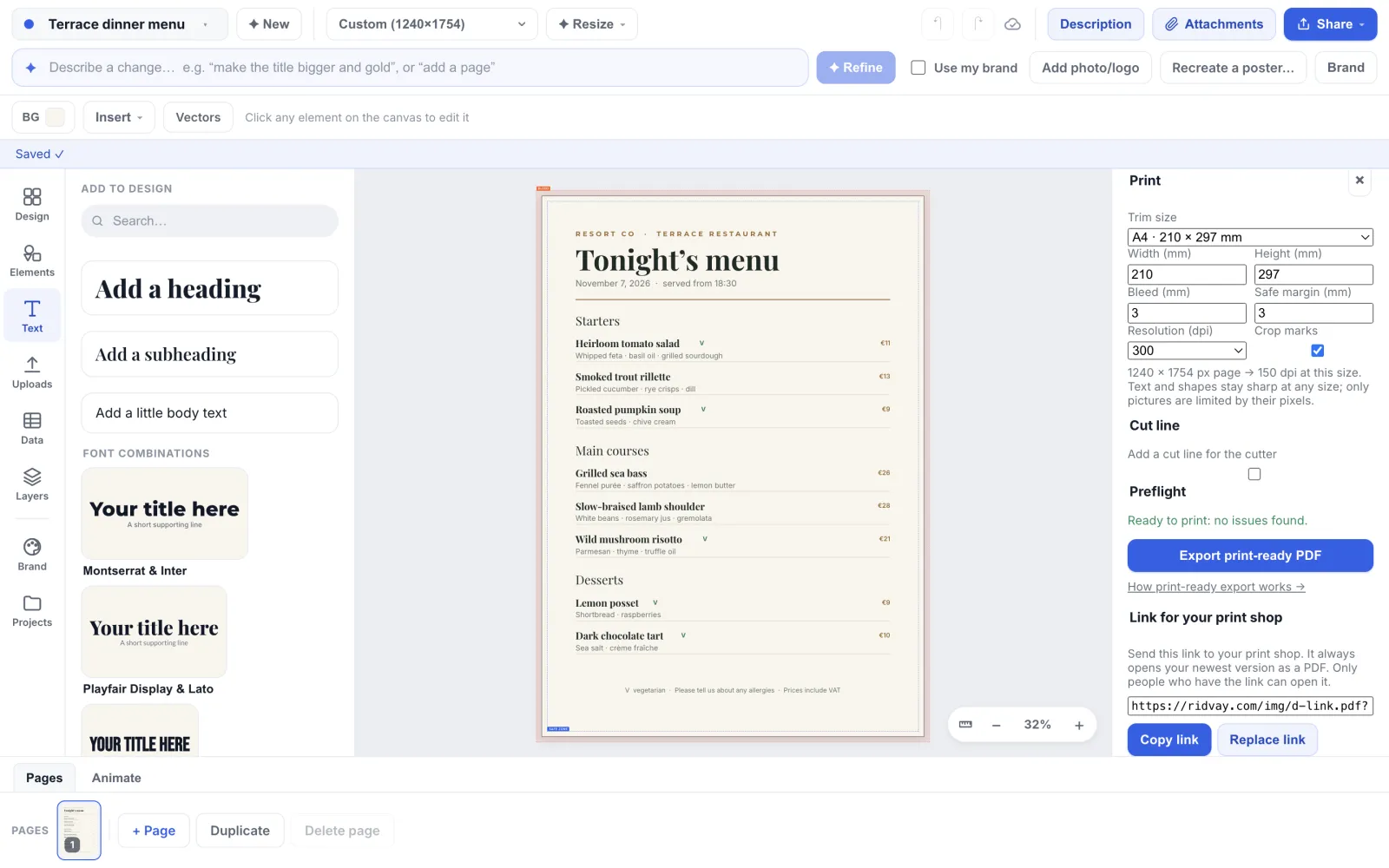
Set the print size
Open Share and choose “Print-ready PDF…”. Pick the trim size your printer asked for, and check the bleed, safe margin, resolution and crop marks. Read the Preflight list and fix what it flags. The size is saved with the design only when you change a field, so change at least one. The link then makes a PDF with that trim size and bleed, and crop marks if they are on, up to 30 pages. Without a saved size it is a plain PDF with no bleed and no marks. A cut line is only in the PDF the panel exports.
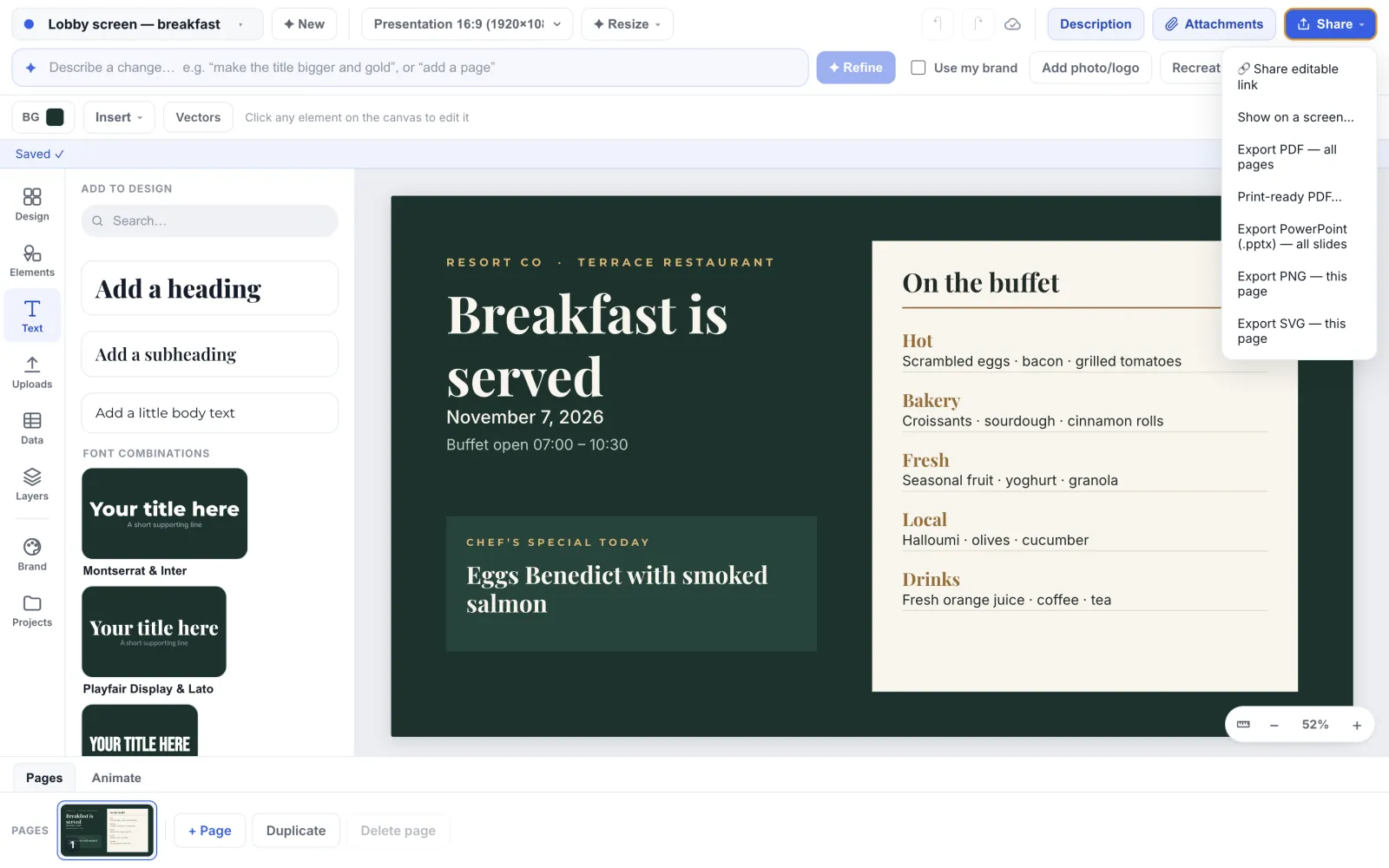
Print-ready PDF… is in the Share menu. Create the link
Scroll to “Link for your print shop” and click “Create link”. The design must be saved and you must be signed in, otherwise the panel says “Save the design to get a link.” or “Sign in to get a link.” In a team you also need edit access to the design’s project; with only content or view access the section is not offered.
Copy it and send it
Click “Copy link” and paste it into your email or message to the printer. It looks like ridvay.com/img/<id>.pdf?k=…, and the last part is the secret that lets it open. The printer needs no account.
Change the design, and nothing else
Edit the menu, fix the price, change the sheet. Studio saves your edits a moment after you stop, so do not send anything again. Whoever opens the link next gets the saved version. A change in a connected sheet can take a minute or a little more to show. In a team with approvals on, the link keeps serving the last approved version until the next approval; an approver’s own edits update that version. Tell the printer to open it again, not to keep an old download.
Replace it when it is out of date
Click “Replace link” and confirm “Make new link”. The link you already sent stops working. Use it if you sent the link to the wrong person or you want the printer to stop using an old one.
Turn it off when the job is done
Click “Turn off” and confirm “Turn off link”. The address stops working for good. You can create a new one later and it will be a different address.
Tips
- Send the link together with the paper size, quantity and finish in the same message. The link carries only the artwork.
- For a menu that changes daily, ask the print shop to open the link on the day, not to save it. Saving a PDF freezes it.
- Replacing or turning off a link breaks one you may already have sent, so Studio asks you to confirm each time.
- In a team that requires approval, a design the rule covers can be sent to the print shop only once it is approved. While it needs approval, Print-ready PDF… is greyed out in Share, so you cannot create, replace or turn off the link. A link you already sent keeps serving the last approved version while others edit, until the next approval; an approver’s own edits update it, and a reviewer who takes the approval back removes that version. If approval is required and a design was never approved, its link shows an error instead of a PDF.
Frequently asked questions
- Does anyone who finds the link see my design?
- Only someone who has the whole address, including the secret at the end, can open it. Do not post it publicly. Replace it if it goes to the wrong person.
- Do I have to share the design to use a print link?
- No. The print link works for a design that is not shared. It is separate from the share link.
- Is the PDF the same as the one I export?
- Nearly. Once you have set a size in the Print panel, the link has the same trim size and bleed, and the same crop marks if they are on, built on our server when it is opened, for up to 30 pages. A cut line is only in the panel’s own export. If the print renderer is unavailable, the link falls back to a simpler PDF made of page pictures, without bleed or marks; a page gets the trim size only if its shape matches the print size, otherwise it is laid out at 96 pixels per inch.
- Can I have more than one link?
- A design has one print link at a time. Replacing it makes a new one and ends the old one.
Try it on your own design
Free to start, nothing to install.
Related guides
- Print-ready PDFExport a print-ready PDF with bleed, crop marks and a safe zone
- Daily menu from a sheetMake a daily menu that follows a spreadsheet: print it, show it on a screen, share it
- Export and shareExport PNG, SVG, PDF, PowerPoint, GIF and video, or share an editable link
- Design approvalsRequire approval before a design is downloaded, published or printed