
Turn a Word, PDF or Excel file into a designed menu, price list or flyer
Updated 2026-11-07
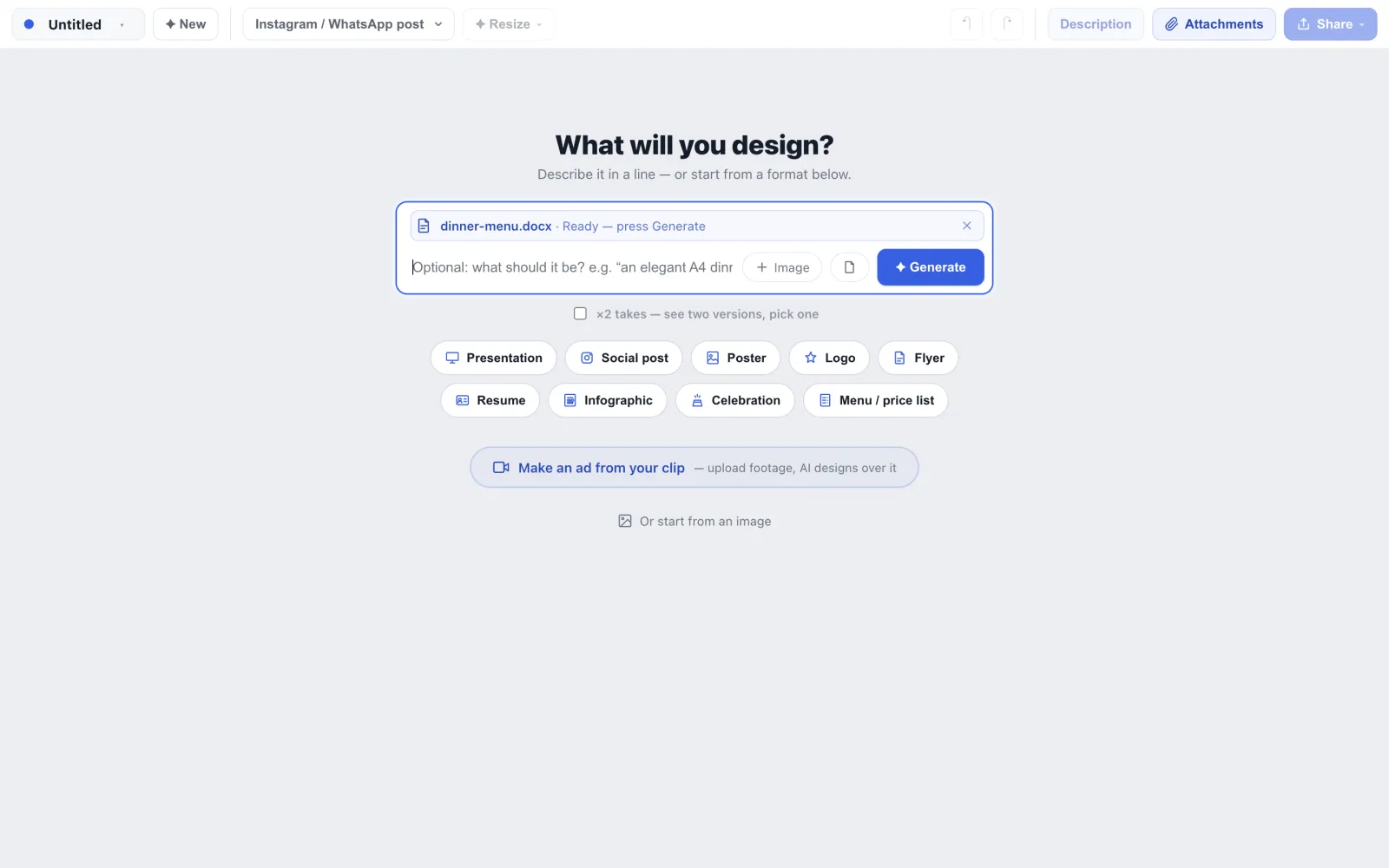
Most menus start life as a Word file the chef or the front desk already wrote. Retyping it into a design tool is where typos happen. In Studio you attach the file, optionally say what you want it to be, and press Generate. The words in the file become the words on the page, as written.
Excel works too, in two ways: as the source for a design, or as the table behind a live menu. Either way you end up with an ordinary editable design, not a picture of your document.
How to do it
Add the file
On the start screen, click the small document button beside “Image” (hover shows “Add a Word, PDF or Excel file”) and choose your file. You need to be signed in. Studio reads it and the chip says “Reading…”, then “Ready — press Generate”.
Say what it should be, or don’t
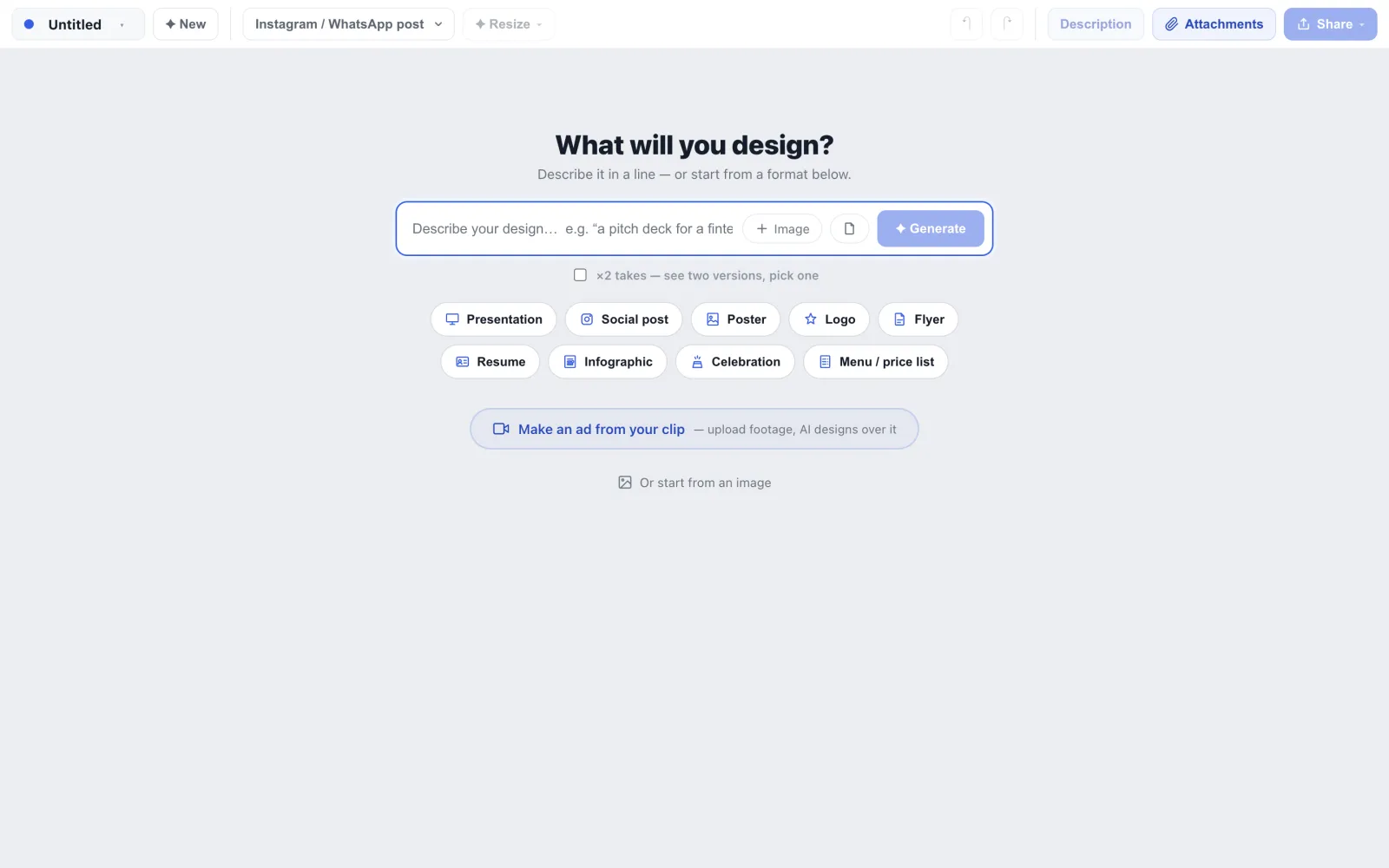
The box under the chip is optional. Its hint reads “Optional: what should it be? e.g. “an elegant A4 dinner menu””. A short line sets the size and style. With no line at all, Studio chooses a layout that suits the text.
Press Generate
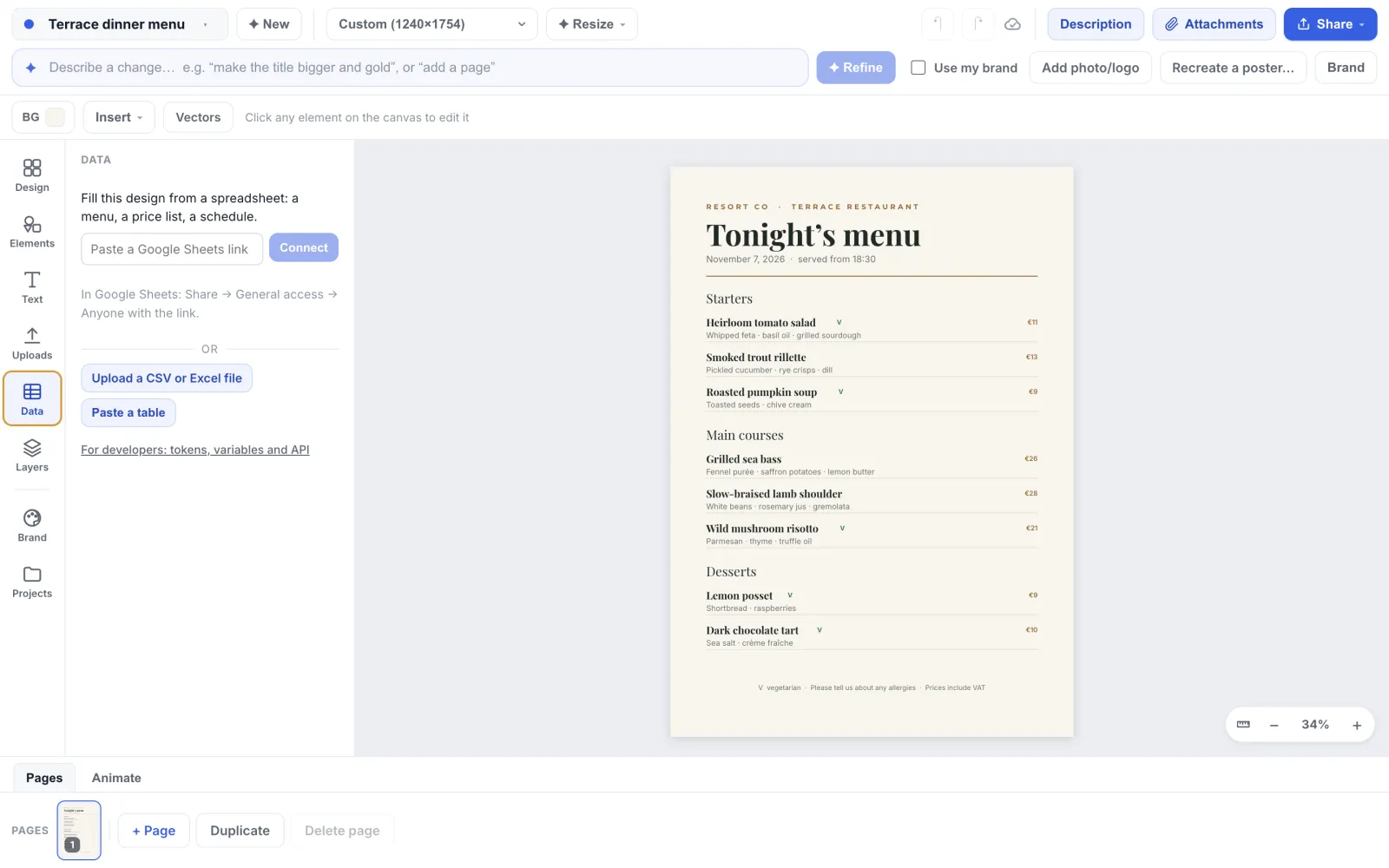
Studio lays the file’s text out as a design with the headings, prices and descriptions in place. The file’s text is what goes on the page, and Studio is instructed to keep your wording, spelling and prices exactly as written. Read it over once before you print.
Restyle with words or by hand
It is a normal design now. Change a colour, swap the font, or type “make the prices gold and right-aligned” in the refine bar. Use the Data tab if the same list should follow a spreadsheet from now on.
For Excel, choose how to use it
Attached on the start screen, an Excel file is read as text like a Word file. To make a menu that follows the sheet instead, open a design, go to the Data tab and choose “Upload a CSV or Excel file”. The first row names the columns, and the rows fill a table you can repeat on the page; the Data tab uses at most 500 rows and warns you if the end was cut. Either way only one sheet is read: the first visible sheet that has data, looking at no more than the first three visible sheets. If your list is on another tab, move that tab to the front or save it as its own file.
Tips
- Keep one idea per file: a menu, a price list. A long file is cut: “Long file — only the first part is used”.
- A clear structure in the file helps: headings for courses, and a price after each dish.
- If a PDF is a scan or a photo of a page, there is no text to read. Re-create it from the picture instead (see Recreate from an image), or retype the words.
- Old Excel (.xls) and Apple Numbers files cannot be read. Save as .xlsx, or in Numbers choose File, Export To, Excel.
Frequently asked questions
- How big can the file be?
- Up to 10 MB. Only about the first 12,000 characters of text are used, and a PDF is read for its first 30 pages. When anything is left out the chip says “Long file — only the first part is used”.
- Does it work with a scan or photo of a menu?
- No. A scanned PDF with no text shows “We couldn’t find any text in this file. Scanned pages and photos can’t be read as text.”, and a JPG or PNG is refused with “This kind of file can’t be read…”. Use “Or start from an image” on the start screen, or “Recreate a poster…” in the editor’s top bar, which turns the picture into editable text and layers.
- Will it add a QR code to a link in my file?
- No. A QR code that points to a link is made only from a link you type yourself, in your description or in the QR settings. A link that sits inside an uploaded file is never turned into a QR code automatically.
- Which file types work?
- Word (.docx), PDF, Excel (.xlsx) and plain text files. Older .xls and Apple Numbers files need to be saved as .xlsx first.
- What if the file is password-protected?
- A PDF that is encrypted in any way, including one that opens without a password but blocks editing or copying, shows “This file couldn’t be opened. It may be damaged or password-protected.” A Word or Excel file with a password is reported as “This kind of file can’t be read. Please use a Word, PDF, Excel or text file.” Either way, save an unprotected copy and try again.
Try it on your own design
Free to start, nothing to install.
Related guides
- Daily menu from a sheetMake a daily menu that follows a spreadsheet: print it, show it on a screen, share it
- Generate from a promptGenerate a complete, editable design from a prompt
- Recreate from a pictureTurn a screenshot, photo or old flyer into an editable design
- QR codesAdd a QR code that scans: a menu link, a page, a Wi-Fi login or any text