
Brand templates: let the team start from a design you control
Updated 2026-11-07
The fastest way to keep a hotel’s menus, posters and room cards looking like one brand is to stop people starting from a blank page. A brand template is a finished design the brand designer publishes for the team. Anyone with edit access to a project picks it, gets their own copy there, and changes the words.
Pair it with the access level “Can edit text and photos” and the person can change the content but cannot move the layout. This works on a project set to “Only people you add”, or for people whose only role is Viewer or Approver. Teams is in early access: if you don’t see “Create a team” on your Projects page yet, contact us and we’ll switch it on for your account.
How to do it
Build the design once
Make the design in a team project the way it should always look: the type, colours, logo and layout. Whoever publishes it needs edit access to that project. Use the team’s brand kit (Projects, then Brand kit) so the colours and fonts are the team’s own. If the numbers come from a spreadsheet, connect it in the Data tab first.
Make it a brand template
Click the design’s title at the top left of the editor to open its menu and choose “Make brand template”. The option appears for the Owner, Account managers and Brand designers, and only when they have edit access to the design’s project. A Brand designer with no other role cannot open team designs on an open project, so give them the Designer role too, or add them to the project with “Can edit”. The design now shows up for the whole team in Brand templates.
Start from a template
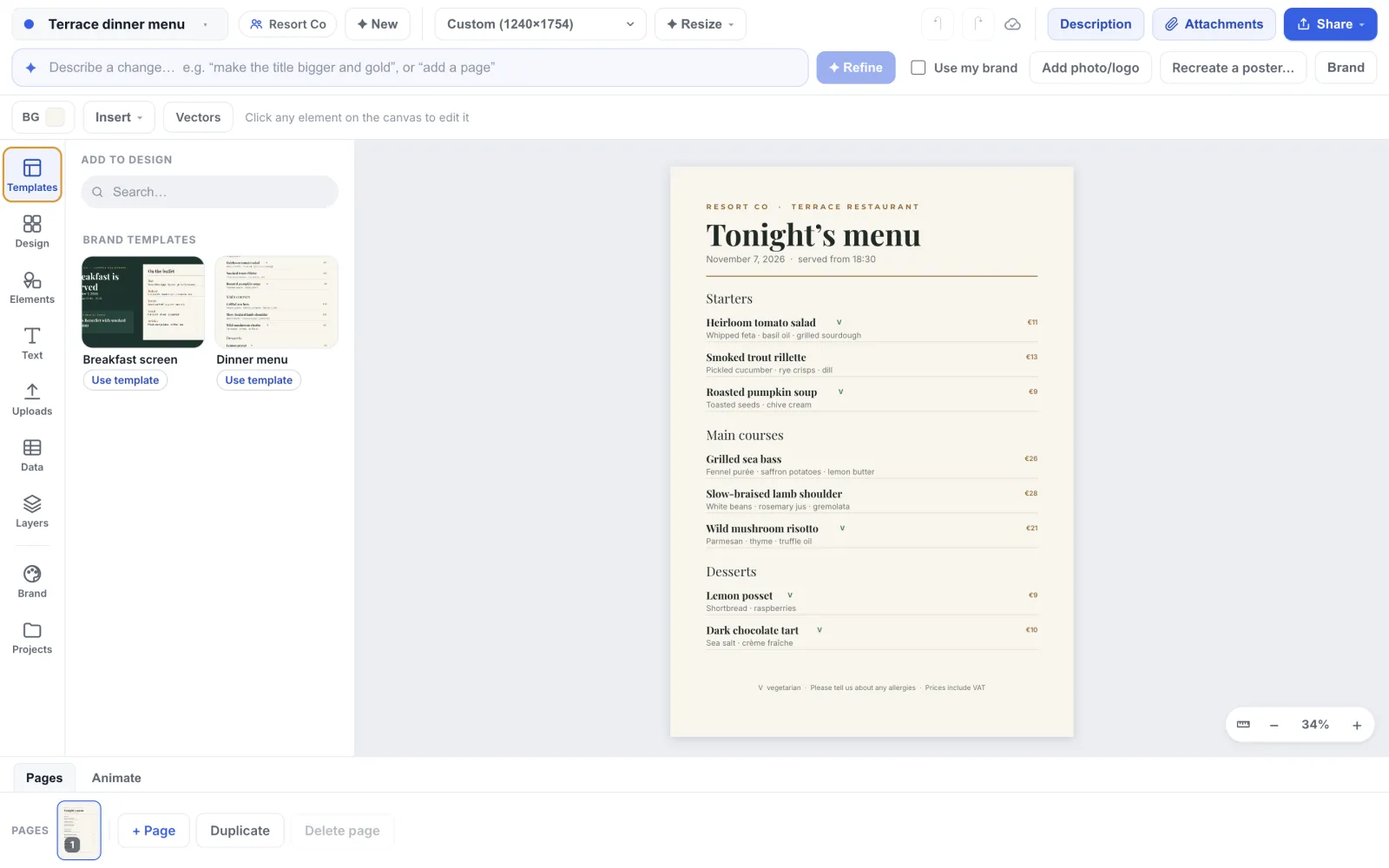
Anyone with edit access to a project opens the Templates tab in the editor, finds “Brand templates” at the top and clicks “Use template”. Studio makes a copy in the project they are in and opens it. The Brand templates tab on the Projects page does the same. It does not ask for a project. It shows “New designs from a brand template go into” the project it picked: the project you came from, else General, else the first project you can edit.
Limit what people can change
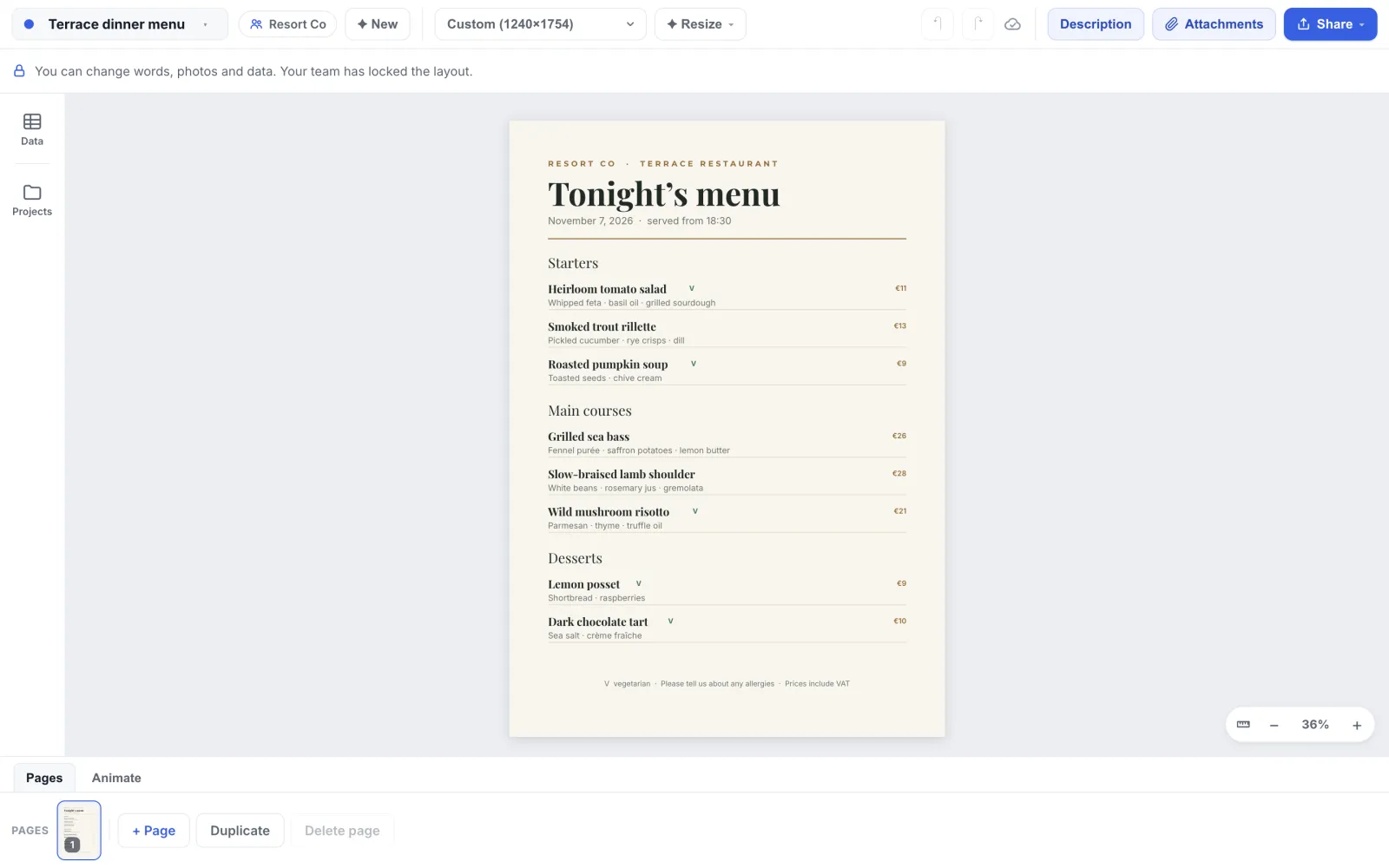
Open the project and click “Share” (you need to manage the project). Set “Who can access” to “Only people you add”, then add each person with “Can edit text and photos” instead of “Can edit”. On an open project (“Everyone in the team”) a Designer keeps “Can edit” from their role, because the higher level wins, and Account managers and the Owner can always manage. The General project is always open. “Can edit text and photos” also works for someone whose only role is Viewer or Approver. They see the notice “You can change words, photos and data. Your team has locked the layout.” Elements cannot be moved, resized or deleted, and the design tools are hidden, but text stays editable in place. They cannot start a copy from a template themselves, because that needs edit access, so someone with edit access makes the copy in that project first.
Send copies through approval
Under People, then Team settings, switch on “Design approvals”, choose “Designs created from brand templates only” and set “Is approval required to publish?” to Yes. A design made from a brand template keeps its link to it, even if the template is later removed, so everything built from your templates must be approved before it is downloaded, published or sent to the print shop, and an edit by anyone but the approver needs approval again. Other designs in the team are not held. Only the Owner and Account managers can change these settings, and the change takes effect when they click “Save changes”.
Tips
- Make one template per kind of thing: dinner menu, breakfast screen, spa price list, event poster. A few good ones beat a long list.
- Build the template with real, plausible content. People change what is there more carefully than they fill a blank box.
- If the content lives in a sheet, the template can be connected to it, and copies follow the sheet like the original does.
- Update a template by editing the original. People who already made copies keep theirs.
Frequently asked questions
- Who can make a brand template?
- The Owner, Account managers and Brand designers. They also need edit access to the design’s project, so give a Brand designer the Designer role too, or add them to the project with “Can edit”. Designers can use templates but not publish them.
- Can a person break the layout in a content-only design?
- Not from the editor. The layout is locked on the canvas, and the saved design carries the new words and photos only.
- Is a brand template different from a normal template?
- A normal template is a starting point from the public gallery. A brand template belongs to your team and is the one you control.
- Can a brand template use our own fonts?
- Yes. Upload the fonts to the team’s brand kit (see the guide on your own fonts), use them in the template, and every copy uses them too.
Try it on your own design
Teams is in early access. Contact us to have it switched on for your account.