
Use your own licensed fonts in Ridvay Studio
Updated 2026-11-07
A hotel’s typeface is part of its logo. If the menu uses a close cousin from a free library, a regular guest may not say why it looks off, but it does. Ridvay’s font list is Google Fonts. If your brand uses a licensed font that is not there, upload the files and Studio uses the real thing.
Uploaded fonts belong to your brand kit. They appear at the top of the font picker, and a design that uses one carries the font file with it, so the share page and the print-ready PDF are drawn with your face.
How to do it
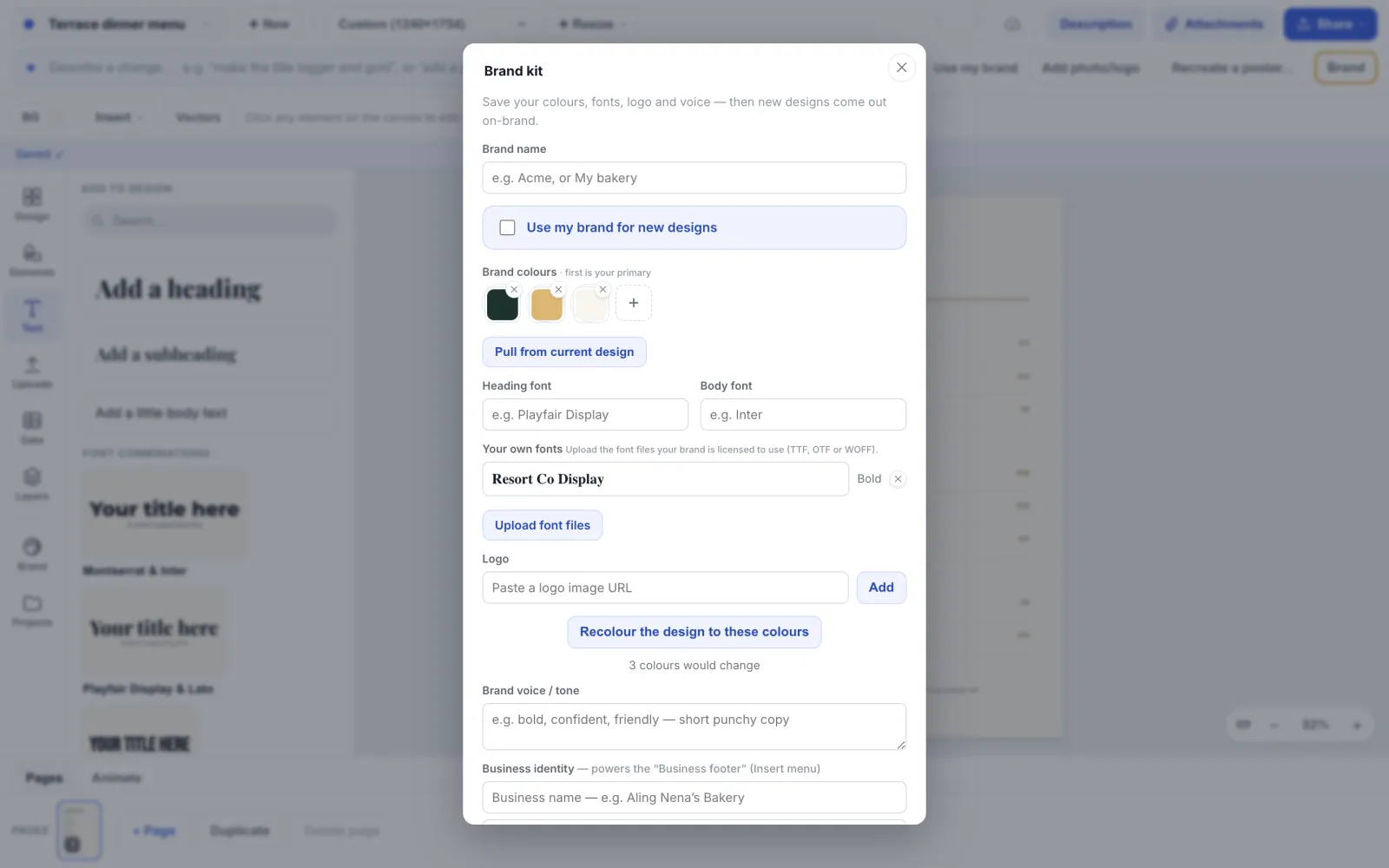
Open the Brand kit
In an open design, click Brand in the toolbar, or open the menu on the design’s title and choose Brand kit. On the Start screen, click Brand kit at the top. The Brand kit holds your colours, heading and body fonts, logos and voice. In a team, the Brand kit button on the Projects page opens the team’s own kit, and only the team’s Owner, Account managers and Brand designers can change it.
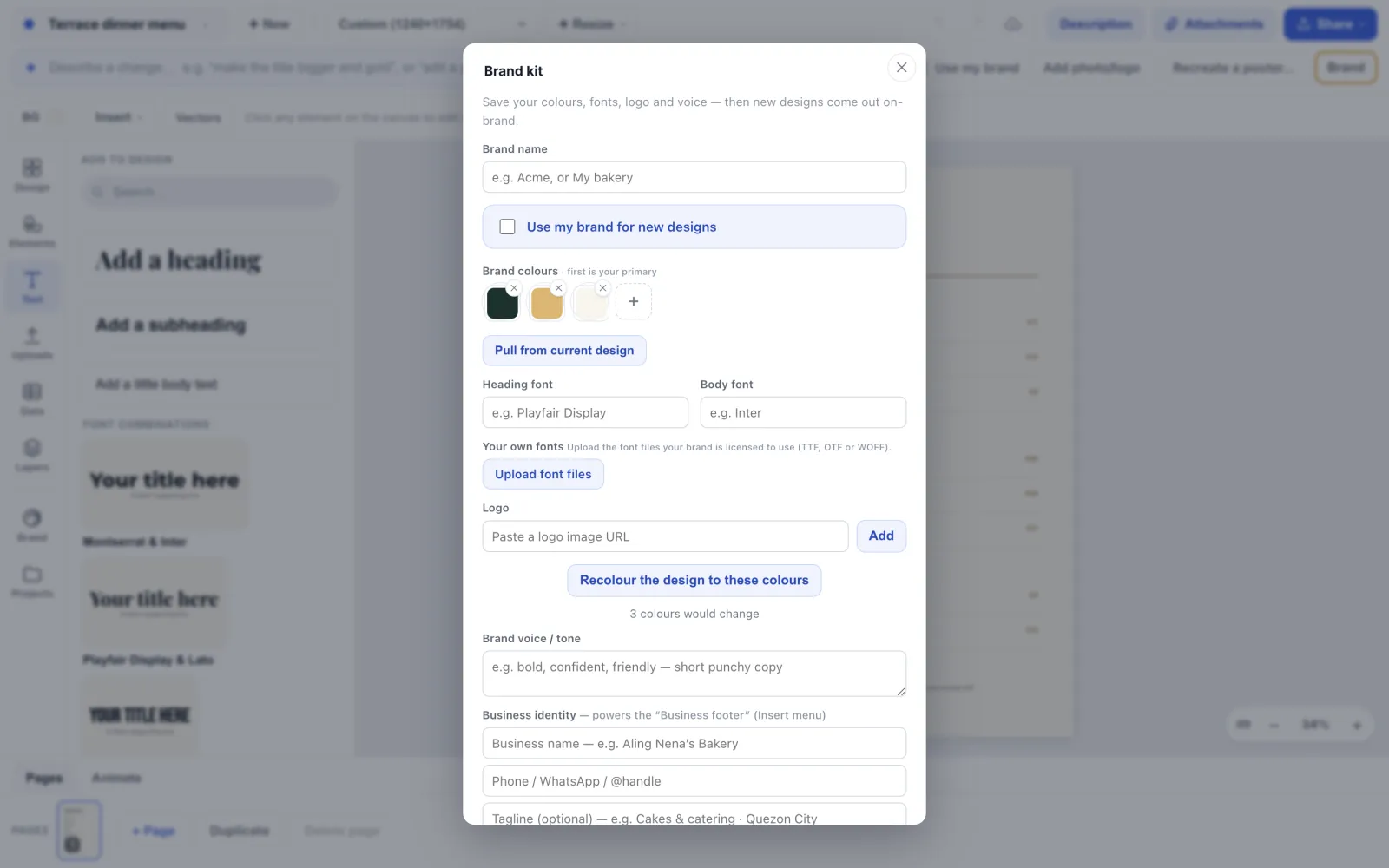
Upload the font files
Under “Your own fonts” click “Upload font files” and choose TTF, OTF, WOFF or WOFF2 files, up to 10 MB each. Upload one file per weight. A brand kit stores at most 24 font files. You need to be signed in.
Check the name and weight
Each file appears as a row with the font’s name, its weight (Thin through Black) and “· Italic” for an italic face, read from the file for TTF, OTF and WOFF. For a WOFF2 file Studio can only guess them from the file name, such as Gotham-Bold.woff2, so check them. Only the name is an editable box. Rename the family if you want, and keep the files of one family under the same name so they group. If the weight of a WOFF2 file is wrong, click ✕ to remove the row, rename the file (for example Gotham-Bold.woff2) and upload it again.
Save the kit
Click “Save brand kit”. The faces are stored with the kit and are there next time you open any of your designs.
Pick your font in a design
Select a text and open the font picker. Your faces are listed first under “Your brand fonts”, above “Google Fonts”. Pick one and the text redraws in it.
Tips
- Upload every weight you use, so bold text is drawn in your Bold and not a stand-in.
- If a file’s family name matches a Google font, Studio saves it as “<Family> Brand”, so your design keeps using your file and not Google’s lookalike. Designs that use Google’s version stay as they are.
- TTF, OTF, WOFF and WOFF2 all work. Use whichever your brand agency gave you.
- Open the share page or export a PNG once to confirm the font shows. It travels with the design.
Frequently asked questions
- Is it allowed to upload any font?
- Only upload fonts your licence lets you use in designs that are shared or printed. A desktop licence often does not cover embedding in a web page or PDF. Check the licence, or ask the foundry, before you upload.
- Are my fonts visible to other people?
- A design carries the font file it uses so it can be drawn anywhere, which includes its share page and print PDF. Do not upload a font you are not allowed to distribute that way.
- Why was my font renamed?
- When the file declares a family that is also a Google font, Studio keeps the two apart by saving yours as “<Family> Brand”. You can rename it in the Brand kit.
- Does it work in a team?
- Yes. The team’s Owner, Account managers and Brand designers upload to the team’s Brand kit, and brand templates can use those fonts.
- Can I use an uploaded font in a print-ready PDF?
- Yes. Text is drawn with the file, so a printed menu uses your exact typeface.
Try it on your own design
Free to start, nothing to install.