
Edit the same design as a teammate without overwriting each other
Updated 2026-11-07
Two people opening the same menu is normal in a kitchen and a marketing office. The risk is that the second person to save quietly erases the first person’s work. In a team design, Studio shows who else is in it and, when someone saves a newer version, it never overwrites your unsaved changes without asking.
This is not typing in the same sentence at once. Changes arrive after your teammate saves, not keystroke by keystroke. Studio checks about every ten seconds while the design is open in a visible tab, so it can take about ten seconds to show up. Studio holds both versions until you choose. Teams is in early access: if you don’t see “Create a team” on your Projects page yet, contact us and we’ll switch it on for your account.
How to do it
See who is here
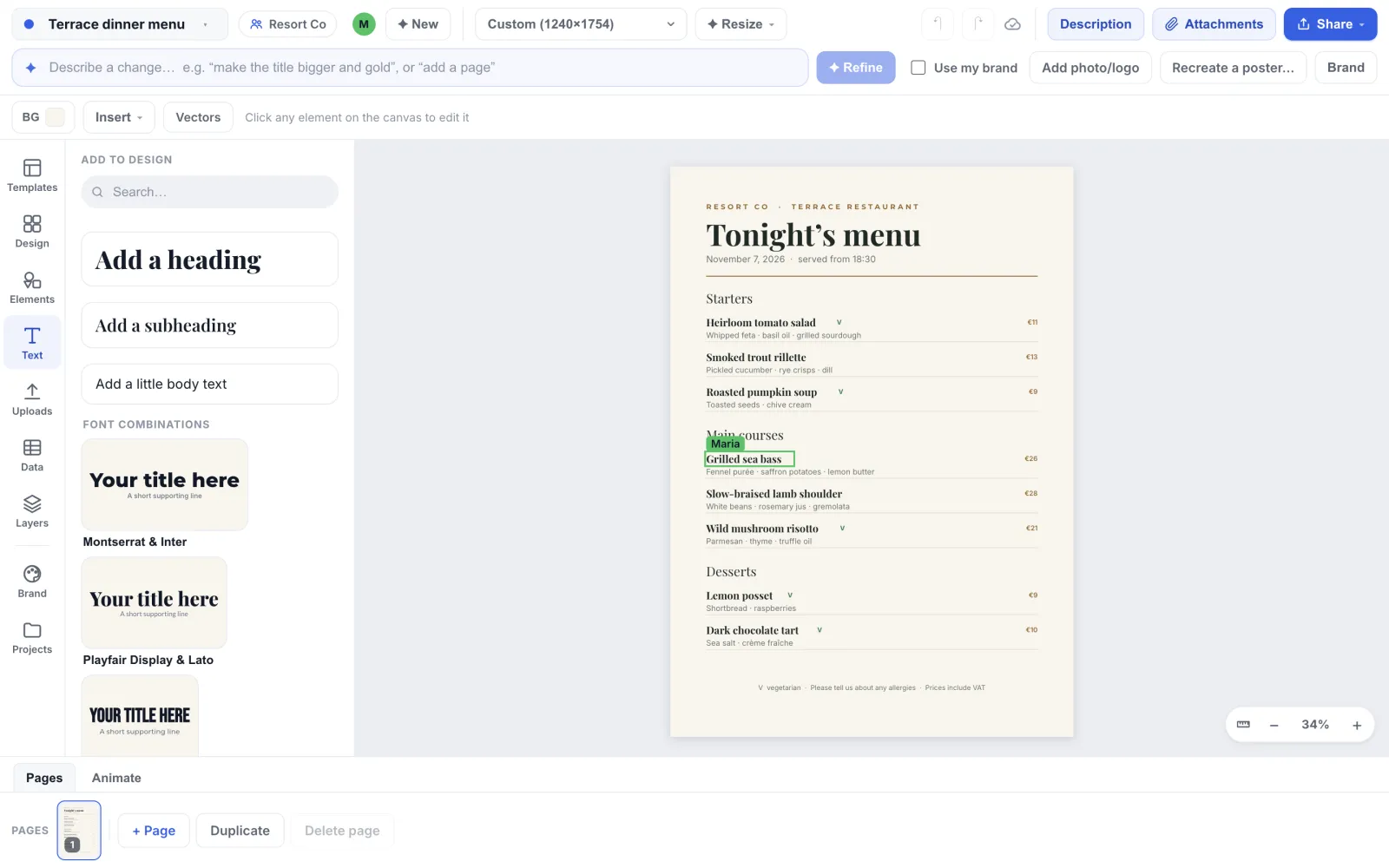
Open a team design. A round avatar for each other person who has it open in a visible browser tab appears in the top bar beside the team name, and hovering shows their name. Someone whose tab is in the background drops off after about half a minute. When someone is selected on something, a coloured outline with their name sits around it on the page. It is only a signal and locks nothing: if you can edit the design, you can still select and edit the same element.
Keep working while they save
If your teammate saves a newer version and you have nothing unsaved, Studio applies it for you in one step and says “Maria saved changes” in the status line. Press ⌘Z (Ctrl+Z on Windows) once to bring your version back, if you prefer it.
Choose when you have your own changes
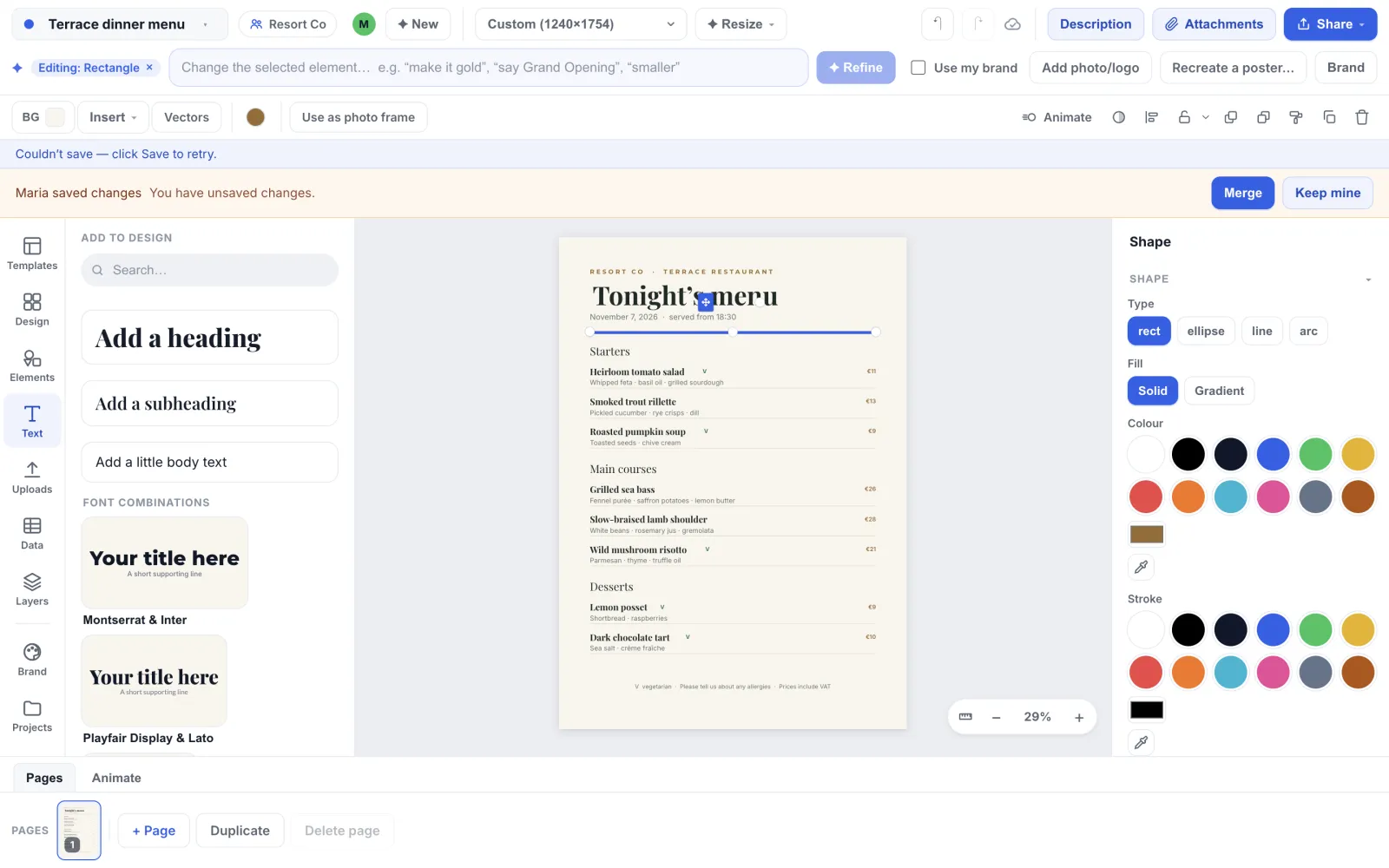
If you have changes that are not saved yet and a teammate saves, nothing is applied to your canvas. A banner appears that says “Maria saved changes” and “You have unsaved changes.” with “Merge” and “Keep mine”. While it is showing, your own saving pauses, so nothing you change from then on goes over her save. A save of yours that goes out before Studio notices hers can still land over hers.
Merge keeps both
“Merge” brings her changes in and keeps yours, as one step you can undo. If she changed the price on one dish and you moved the heading, you end up with both. Merge works element by element: if you both changed the same element, even in different ways, your version of it is kept and her change to it is not applied. The same goes for a design-wide setting such as the title or theme. If pages were added or removed, Studio puts her version on the canvas instead and tells you; Undo brings yours back.
Keep mine replaces hers
“Keep mine” asks first: “Keep your version? Your next save will replace the changes that were just saved.” Use it when you know her change was a mistake, and tell her.
Leaving with changes held
If you try to open another design or generate a new one from a prompt while the banner is up, Studio asks first: “Your latest changes aren’t saved — choose Merge or Keep mine first. Open another design and lose them?” Leaving with the browser’s Back button or a link in the site header asks the same, ending “Leave this page and lose them?” Closing the tab brings up your browser’s own warning. New design, resize, animate and refine do not ask: they only say “Choose Merge or Keep mine first — a teammate saved changes.”
Tips
- Agree who edits what before a busy morning: one person on prices, one on photos. Merge handles different parts of the page cleanly.
- Merge is the safe default. Use Keep mine only when you are certain the other change should go.
- Press ⌘Z after Merge to take the merge back. It is one step.
- A personal design never shows presence or the banner, because nobody else can open it.
Frequently asked questions
- Do I see my teammate’s cursor moving?
- No. You see who is in the design and what they have selected, and you get their changes when they save. Studio does not stream every keystroke.
- How many people can be in a design at once?
- Anyone with access can open it. The top bar shows up to four avatars, then a “+N” circle for the rest. Hover it to see their names.
- Will I lose work if my connection drops?
- Your unsaved changes stay on the canvas and the status line says “Couldn’t save — check your connection.” Studio does not keep retrying on its own: your next change sends the save again. If someone saved in the meantime you get the Merge or Keep mine choice, not an overwrite.
- Does this work for designs linked to a Google Sheet?
- Yes. Changing the data in a linked sheet does not save a new version of the design, so it never triggers Merge or Keep mine. Connecting or changing the link itself is a design edit like any other and is handled the same way.
Try it on your own design
Teams is in early access. Contact us to have it switched on for your account.
Related guides
- Teams and projectsSet up a team: invite people, give them roles and share projects
- Export and shareExport PNG, SVG, PDF, PowerPoint, GIF and video, or share an editable link
- Design approvalsRequire approval before a design is downloaded, published or printed
- Brand templatesBrand templates: let the team start from a design you control