
Translate a design into another language: the same post, every page, for every market
Updated 2026-11-15
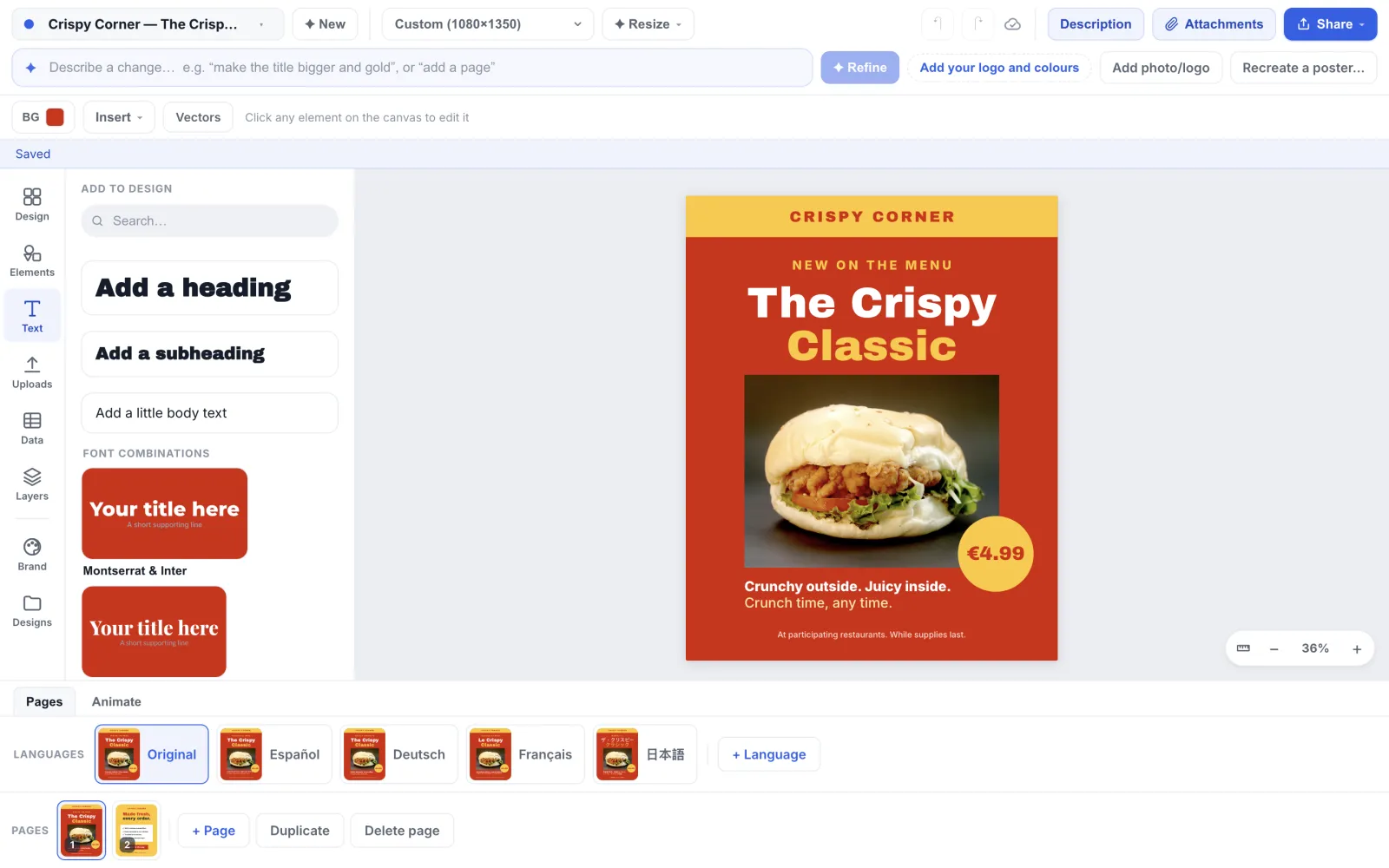
A brand that sells in more than one country posts the same thing several times: one launch post, then the Spanish one, the German one, the French one. Retyping each version by hand is slow, and every copy drifts a little from the original. The Languages row in Studio makes each version in one click: every page of the design is translated, and the layout, photos, colours and fonts stay the same.
Each language is its own design, linked to the original. You export, share or animate it on its own, so a franchisee in Madrid downloads only the Spanish post. When the original changes, each translation shows that it is out of date, and Update translates it again from the original.
How to do it
Open the design you want in other languages
Open it from My designs, or make it in Studio first. A single post works, and so does a carousel or a deck: the translation covers every page. Finish the original before you translate it. Each translation is a copy, so a change you make to the original later is not in the copies until you update them.
Find the Languages row above the pages
On a computer it is at the bottom of the editor, directly above the page chips. On a phone, tap Pages to open it. You need to be signed in, and the row is shown for your own designs, not for designs in a team.
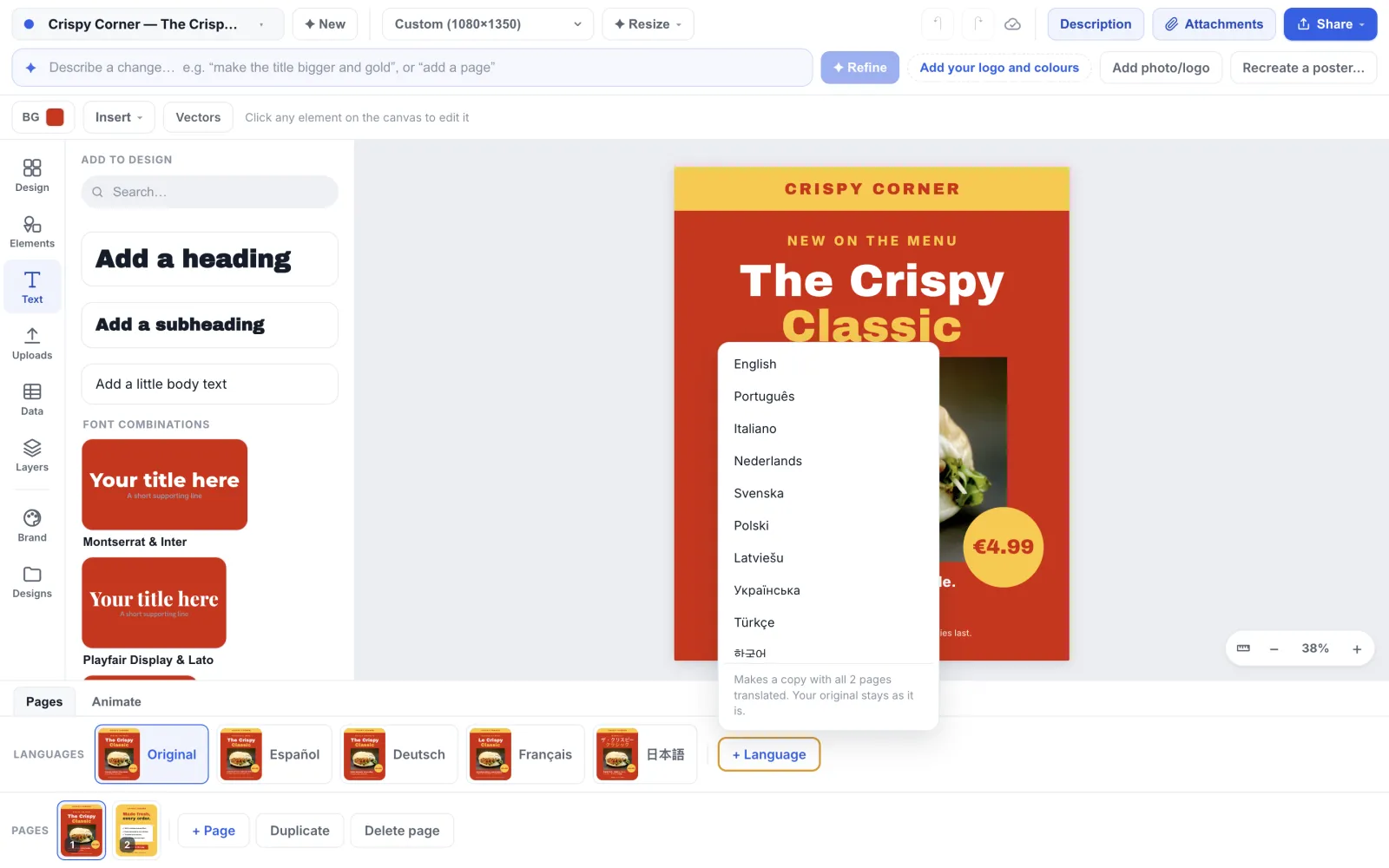
Click “+ Language” and pick a language
Each language is listed by its own name: English, Español, Deutsch, Français, Português, Italiano, Nederlands, Svenska, Polski, Latviešu, Українська, Türkçe, 日本語, 한국어 and 中文. The menu says how many pages will be translated. A language the design already has is not listed again. Studio translates the words and opens the translated copy, usually within a few seconds. Its title is the original’s title with the language added, such as “Spring launch — Español”.
Check every page of the translation
Click through the page chips. A translation is often longer than the original. Where a line would no longer fit its text box, Studio sets the whole box a little smaller, every line by the same amount and never below 70% of its size. Very long words, such as German compounds, can still wrap onto an extra line. Edit the copy like any design: click the text and shorten it, or make the box wider.
Switch between languages from their chips
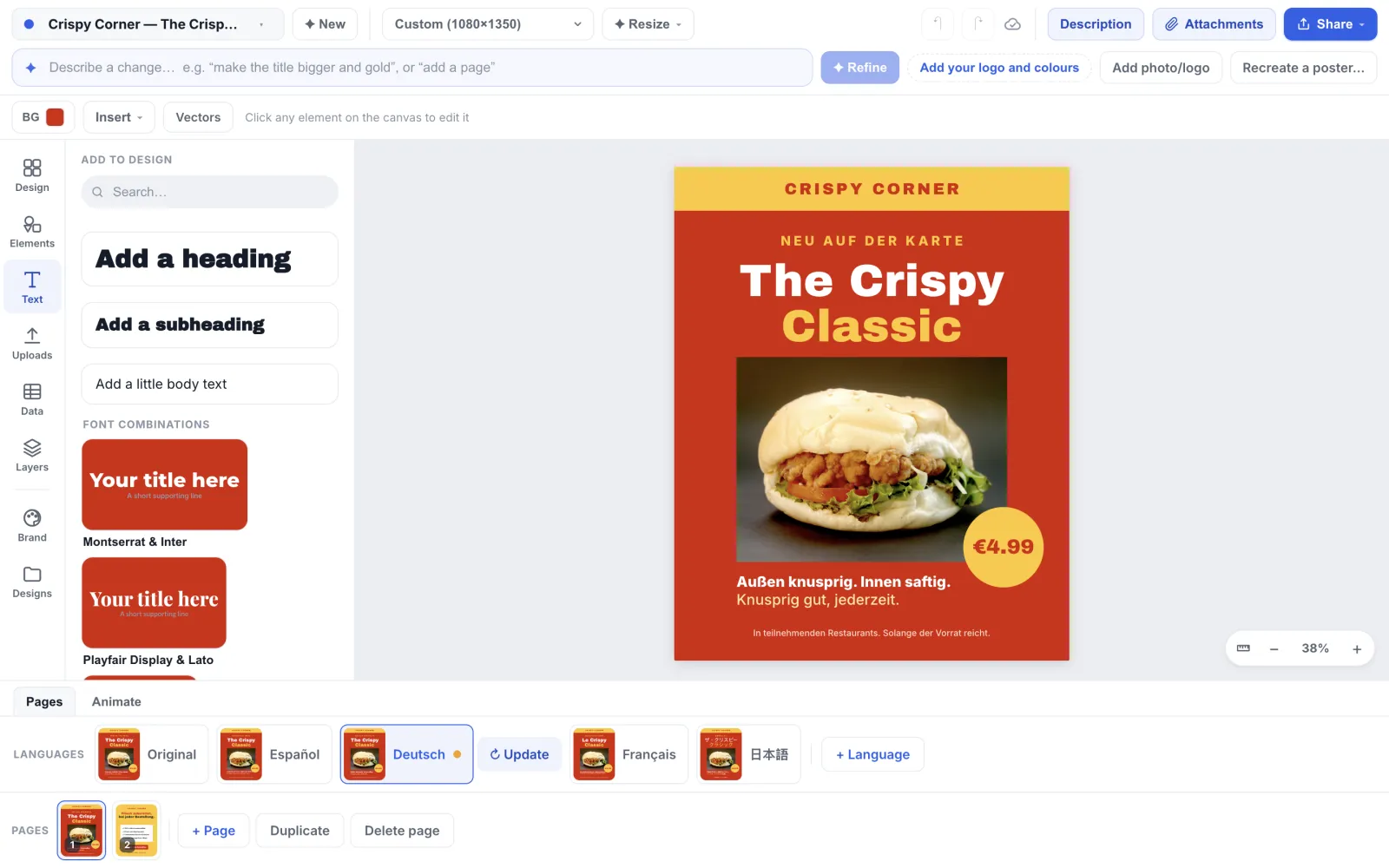
Click a chip to open that language. The open one is highlighted. Each chip shows a small picture of its design, like a page chip. Your edits are saved before you switch.
Update a translation after the original changes
After you change the original, the next time you open the design or switch language, every translation made before the change shows a dot and a “↻ Update” button beside its chip. Update asks first: it translates the original again and resets the copy’s layout to the original’s, so changes you made on that copy are replaced. Version history keeps the copy as it was, if you need something back from it.
Export, share or animate each language
Each translation is a full design. Open Share on it to download a PNG, JPG or PDF, copy its own link, or export a video. In My designs you see one card for the original with a +N badge for its languages; open the original and pick a language from the row.
Tips
- Translate from a finished original. Every language is always made from the original, even when you click “+ Language” while a translation is open, so one fix in the original reaches every language with Update.
- Prices, numbers, links, email addresses, @handles and {{live data}} tokens are not sent for translation, so €4.99 stays €4.99. If a market needs another price or currency, edit it in that language’s copy, and remember that Update puts the original’s price back.
- Brand and product names are kept as written. If you want a product name translated in one market, change it in that copy.
- Text that is part of a photo or a picture is not translated, so keep words out of images when you plan several languages.
- Read each translation before you post it, ideally with a native speaker. Machine translation is good at marketing copy but does not know your local promotions, legal lines or slang.
Frequently asked questions
- Does translating change my original design?
- No. The original is never changed. Each language is a new design linked to it, and deleting a translation leaves the original as it was.
- Can I translate a carousel or a multi-page design?
- Yes. All pages are translated together, in one request, so the copy reads as one piece across the slides. The translated design has the same number of pages in the same order.
- What happens to the edits I made on a translation when I press Update?
- They are replaced. Update translates the original again and the copy takes the original’s layout, which is why Studio asks before it runs. The previous version stays in the copy’s version history, so you can restore it or copy text from it.
- Can I make another size, such as a story, from the same design?
- Add a page in the size you need, or change the canvas size. The Languages row only makes languages; a size is a page of the design.
- Which languages are available?
- English, Spanish, German, French, Portuguese, Italian, Dutch, Swedish, Polish, Latvian, Ukrainian, Turkish, Japanese, Korean and Chinese. Japanese, Korean and Chinese text is shown with a matching font automatically when the design’s font has no characters for it.
- Does a translation use my AI allowance?
- Yes. Adding a language or updating one counts as one AI text action, and it counts only when it succeeds. If you have reached your limit, Studio says so and your design is left as it was.
Try it on your own design
Free to start, nothing to install.